Every great idea will need to transform into a project before it can become real. It's one thing to dream something up, but quite another to actually make it happen.
Projects are about the nitty-gritty, such as ensuring that team members are focused on their tasks, leaders are monitoring resources and budgets, and everyone else is in the loop about what's going on and when. Through project management, you distribute resources and tasks and clearly define who's accountable for what. It’s the glue that keeps everything together and on track – from the project's scope and budget to its timeline – so you don't have to worry about things slipping through the cracks.

Why Confluence for Project Management?
Luckily, there are plenty of great resources on project management practices. So then, let’s talk tools.
Here’s a bold suggestion: Atlassian Confluence might just be the right project management tool for your organization. It all depends on your needs, of course, but stay with us for a moment.
It’s likely that Confluence is something that your teams already know and love – or at least something they’ve used and find easy to understand. This is a massive benefit, because adoption is one of the biggest success factors for any software tool. And because Confluence is incredibly flexible, both in how you can use it and in how it integrates with other tools, you may find that with a bit of creativity everything you need to support the way you manage projects is actually already in your software toolbox!
Creating Your Project - The Overview
Let’s get started. You have a project teed up in the planning phase, now it’s time to lay it all out. Whether you’re using Confluence or Atlassian’s team alignment tool Atlas for your project overview, this page will serve as your central project hub, offering a clear overview accessible to everyone.
For smaller projects, the overview page can live in an existing space as long as it’s clearly labeled in the page tree. In our experience, for bigger undertakings, such as developing a new feature or product, it’s best to create an entire separate Confluence space. Using the space’s home page as the project overview is the most intuitive way for everyone to know where to start and how to see the big picture.

With Rovo in the picture, the project overview page plays an even bigger role. It’s where AI starts reasoning about your project. Clear goals, ownership, and status updates help Rovo surface accurate answers instead of guesswork.
Your project’s Confluence overview page or Atlas homepage should include the following details:
-
Purpose and Goal
-
Status updates
-
Definition of done
-
Links to related pages
-
The team
-
Project manager
-
Sponsor
Creating your overview page is easy with plenty of ready-to-use templates available in Confluence. Check out the Project plan template to get started.
Assembling and managing your project team
Creating and listing a project team in Confluence is very straightforward. Once your team is defined, you can easily reference it on your project overview page so everyone knows who’s involved. Placing this information near the top of the page makes ownership and accountability immediately visible.
For some, the list of all the team members working on the project will be just what they need. But others may want to know more. Some useful information to have available on the team page is:
-
The name of the team
-
A description of why the team exists
-
The team members and their roles
-
A list of the team’s recent activity
-
Options for contacting the team
-
Ways to get support from the team
-
Useful links for project resources, like your project overview
Executing Your Project
Once you’ve laid a foundation, it’s time to continue with the actual execution of your project. Organization, proper use of task management functions, and helpful features within Confluence are all things that will help you do this well. Let’s break these down.
Organization and Layout
Because your project overview page is in Confluence, all the rest of your project planning pieces can also live in Confluence. Using the page tree, you can group all the valuable pieces of the project plan underneath your project overview page.
Anyone can find and collaborate on additional pages like the:
-
Project kickoff
-
Goals, signals, measures
-
Task breakdown
-
Premortem
-
Expenses
As the project evolves, you can create additional sections and/or child pages to categorize the work for the entire project in one page tree. Other things you might add later include:
-
Meeting notes
-
Documentation
-
Status update pages
-
Pages where teammates collaborate on project tasks
-
Databases to track decisions, risks, or milestones
-
Whiteboards for early ideation and alignment sessions
By planning your project in Confluence, you can directly collaborate with everyone involved while having the information about the work live in the same place the whole time.
Task Management Tools
Task management is a fundamental aspect of project management. Confluence offers core task management capabilities through action items and the Task Report macro. Action items allow you to delegate tasks in a checklist format, breaking your project down into easy-to-follow steps. The Task Report macro provides you with an overview of these tasks, with customizable columns to display the important details, such as the assignee, date, and status.
For projects that evolve over weeks or months, involve larger teams, or have complex dependencies, you might find tools like Trello or Jira more suitable.
Our team uses both Trello and Jira to assist in giving an overview on tasks. For example, a certain app’s design elements can be broken down and assigned individually within Trello, allowing the whole team to see what’s happening and when.
Now, choosing external task management doesn't mean you can't integrate it into your Confluence planning pages. Thanks to Confluence's extensive range of integrations, you can seamlessly blend tools that deliver all kinds of functionality into your workflow. For instance:
-
Integrate a Trello board directly onto your page, allowing team members to interact and update in real-time.
-
Embed a Jira Roadmap to provide a clear view of a workstream’s tasks and milestones in a timeline view.
-
Incorporate Smart Links to Asana tasks and projects, keeping everyone informed about upcoming responsibilities.
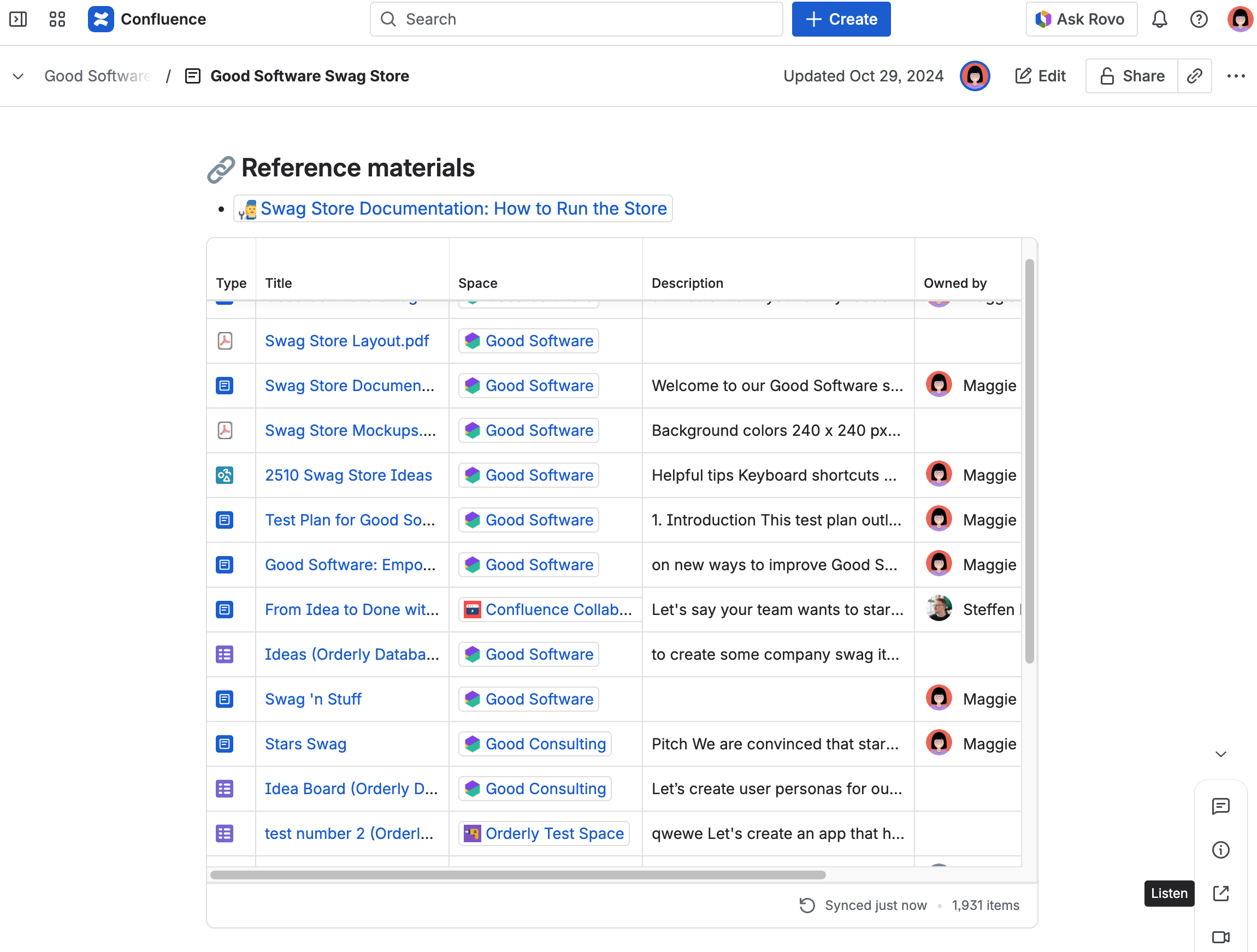
Even when parts of your project are managed in other applications, Confluence remains the central hub where all aspects of your team's work come together.
Project Management and Communication
Dealing with tasks and information is certainly an important part of project management, but communication is often where things get complicated. Getting the right updates to the right people at the right time, aligning on actions and decisions, gaining stakeholder approval at key milestones – it’s all a challenge, even for the best of teams.
Luckily, Confluence provides some very handy functionality to reduce the amount of effort it takes to communicate valuable information.
Communicating Through the Project Overview Page
Your project overview page contains the fundamental information about the project, making it double as a very useful as a communication tool. As a reminder, this page has details about the people involved, milestones, weekly status updates, and roadblocks.
The broadest example is for those outside of your team who need to know the current status and to see its progress over time. To achieve this, you have several options:
-
Share the page so stakeholders get a notification in Confluence or in their inbox
-
Mention stakeholders in specific updates that are most important to them
-
Recommend stakeholders “watch” the page so they’re notified whenever it’s modified
Project overview pages really shine when you’re managing multiple projects at the same time. Because key information is structured and consistently placed, you can roll up several overviews into a single portfolio view, giving you (and your stakeholders) a fast, reliable way to understand what’s happening across projects without digging through individual pages.
Whiteboards
Like the good ol' in-real-life whiteboard, Confluence Whiteboards is a great tool to visualize your work and collaborate on it in real time. Consider it a digital canvas where everyone can contribute, share ideas, and react.
One of our favorite ways to use whiteboards is for brainstorming. Here, your team can map out concepts, group them, and immediately break them into actionable tasks. The real magic happens with the Jira integration: you can turn a sticky note into a Jira issue with a single click, or even import existing issues to visualize dependencies.
While our team used to rely on tools like Miro, having whiteboards live natively within Confluence means your brainstorms stay connected to your project documentation.
Automations
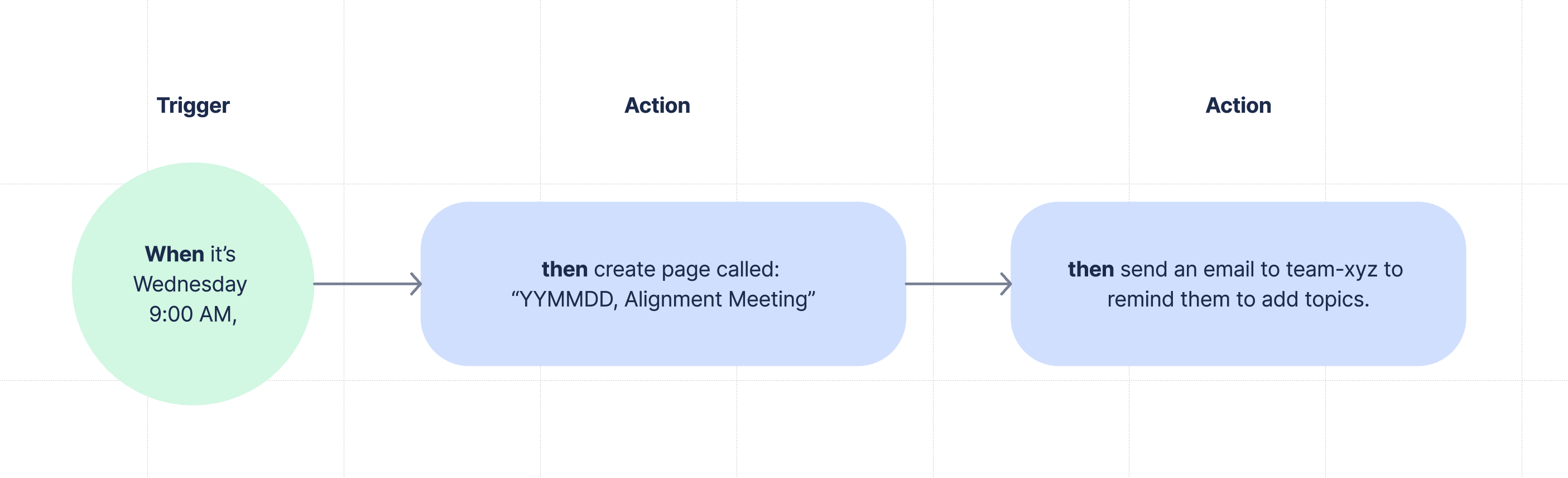
Using Automations for Confluence is a perfect way to save time for routine communications involved with project management. Automations are fully customizable, ranging from creating pages to sending reminders. For example, if there’s a status meeting that occurs each week, you can create an automation that generates a weekly meeting notes page, so it’s already there and accessible each time.
Here are some other tasks that can be automated to maximize efficiency in your project management:
-
Sending out reminders to your team (can be sent via Slack or external tools as well)
-
Sharing a weekly email to stakeholders
-
Sending notifications when a page status changes
-
Restricting certain pages to specific users
Our team uses automations to simplify our note-taking process for our weekly project status meetings. The automation creates a page from a template each week, and it also sends out a Slack reminder about its creation, so the whole team is aware of it. We simply click the link in Slack, or go to the page tree of our Confluence instance, and it’s there!
Atlas
For brief updates at a very high level, Atlas is a great tool for quick communication. Its social-media–style format encourages short, focused progress updates that are easy to scan and understand at a glance.
Atlas also allows you to:
-
Share the current status and target dates,
-
Embed additional content such as images, links to Confluence pages, etc.,
-
React to and comment on updates to keep conversations flowing.
Atlas isn’t required for project management, but it works especially well as a complement to Confluence. Additionally, it’s motivating to celebrate the small wins that you and your teammates accomplish along the journey. A few encouraging words or reactions from your colleagues might be just the boost you need to get over the next milestone hurdle.
Atlassian Rovo
In many projects, the real communication challenge is finding the right answer in the right moment.
Atlassian Rovo helps teams surface the right information at the right time by turning your Confluence project space into an active communication layer. Team members and stakeholders can ask natural-language questions like “What’s the current status of Project X?” or “What decisions were made recently?” and get answers grounded in the content of your space.
One particularly useful feature for project communication is Rovo’s ability to summarize pages and recent changes. Instead of writing a new status update from scratch, teams can use Rovo to generate concise summaries of what changed, what was decided, and what’s still open – directly from the project space.
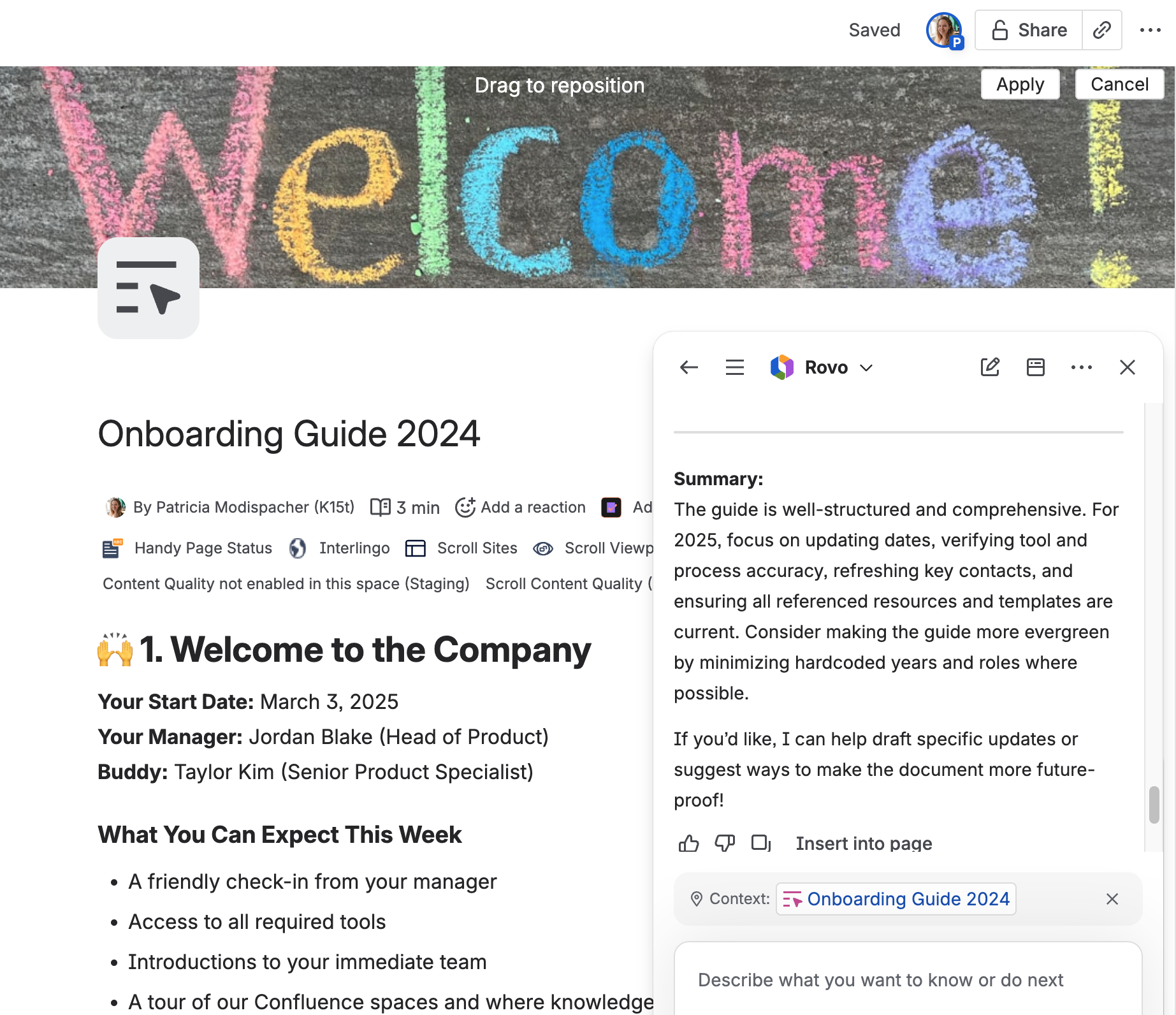
If you want to go deeper, we cover Rovo’s core features, real-world use cases, and best practices in our Rovo article.
Databases
Confluence Databases provide a powerful way to organize and manage structured information directly inside Confluence. Instead of scattering tables across pages, teams can now create centralized, reusable information libraries with a single source of truth.
Here, you’ll also be able to monitor and update statuses, and adjust various tools, links, and data. The best part is that changes made in one database entry reflect immediately across every page where the database entry displays, meaning no more manual updates in multiple locations. Our team uses it for data organization on every level, as it makes transparency between projects effortless.
Fun Fact: Confluence Databases ties back to K15t, as an app that we developed which used to be called “Orderly Databases.” Atlassian acquired it from us, and have since been working on the release for all Cloud users.
Templates
There are numerous pieces of information created throughout the life of a project that are very similar to one another, such as meeting notes. Confluence is packed with premade templates to help your team create consistent pages quickly to keep your most important project information organized and accessible. Anyone can quickly begin creating a new page, pick a page template they want, and just start filling in the information they need. And, if you find that none of the premade templates meet your needs, you can create a custom template instead.
In the case of meeting notes, the Meeting Notes template ensures the team captures:
-
Who was in the meeting
-
What was discussed
-
What decisions were made
-
What action items came out of it
A page like this is also immediately shareable with stakeholders. So you don’t have to write up a summary email, you can just share the page.
Confluence offers over 100 templates to choose from. Let us guide you in choosing the right one.
Stakeholder Transparency
In many cases, you can share all necessary information with stakeholders outside the project team through the overview page. But for larger projects, Confluence's blog feature is ideal for creating comprehensive updates.
We recommend you opt for weekly blogs, and the Business Status Update template is perfect for this. These blogs can include mentions of stakeholders and team members, and links to relevant resources both inside and outside Confluence. Enhance the posts with page elements to highlight key project details.
Encourage stakeholders to follow the blog for instant updates - they'll receive emails with direct links for Confluence. Alternatively, you can use Atlas to send live reports to your stakeholders.
This approach allows project managers and collaborators to efficiently communicate with all stakeholders, saving time and ensuring everyone stays informed without repetitive updates.
If such communication challenges sounds familiar, you’re not alone. In one of our live sessions, we explored why project communication breaks down so easily, and how teams use Confluence as a central collaboration layer across Jira, Slack, email, and stakeholder updates.
https://www.youtube.com/live/2cV-hz6D9jc?si=xuzngOklomJWTYf-
Embracing Confluence for Project Management
Whether you're engaged in a single project or juggling many, Confluence transforms your workflow, helping you not just with planning but also with turning those plans into real-world successes. You’ll discover a remarkable difference in collaboration when your project is powered by Confluence, where all team efforts connect back to a single source of truth.
Are you exploring Confluence for the first time, or are you a seasoned user working in project management? We’d love to hear about your own best practices – leave them in the comments section below!