Confluence alone is a powerful tool for sharing knowledge and bringing teams together. With Confluence whiteboards, it becomes a smart hub for the modern way of collaboration. In this article, we’ll explore best practices for using whiteboards in Confluence to collaborate effectively, whether your team works side by side, across time zones, or asynchronously.
What is Confluence Whiteboards?
Confluence whiteboards turn the physical whiteboards you know from classrooms and meeting rooms into a flexible, and infinite digital canvas. Imagine your team wants to set up a swag store. You can start by brainstorming ideas, collecting input, and sketching out the first steps all in one shared space. No matter where teammates are in the world, everyone can join in and contribute.
Whiteboards help you turn ideas into action whether you’re brainstorming ideas, running retrospectives, or create diagrams and flowcharts. You get all the familiar essentials like sticky notes, shapes, diagrams, text, stamps, and more, plus interactive features like timers, voting, and Jira integration right at your fingertips.
Furthermore, Confluence whiteboards are SOC 2 and ISO 27001 certified, so your team's ideas are protected. Check Atlassian’s Compliance Resource Center to learn more.
Friendly Reminder: Confluence whiteboards are only available on Cloud, and not on Data Center.
Whiteboards vs. Miro
Many teams use Miro as a digital canvas for brainstorming, but if you’re already in the Atlassian ecosystem and using the Teamwork Collection, whiteboards might be the smarter choice.
How is that?
Confluence whiteboards give you everything you’d expect from a digital whiteboard tool like Miro, but fully integrated into Confluence. That means you don’t have to juggle separate licenses, and there are no extra costs like with Miro. In fact, Reddit reported saving €300,000 by switching from Miro to Jira and Confluence whiteboards.
If you’re already using other Atlassian apps, the whiteboard integration becomes even more powerful. You can easily link whiteboards with Jira work items, Confluence pages, and Trello cards, turning brainstorming sessions into actionable work without switching platforms.
Synchronous Collaboration
Confluence whiteboards are a perfect example of how teamwork has evolved during the past years. You no longer have to crowd in a meeting room hoping you could actually read what's written on the physical whiteboard or stare at a fuzzy image on a videoconferencing shared screen.
Synchronous collaboration no longer requires every team member to be in the same room, or even the same country. The shared space is now in Confluence, and the physical whiteboard has become a digital one where everyone has a voice. Whiteboards give you that most positive face-to-face energy without being face-to-face.
Here are some forms of synchronous collaboration today:
-
Brainstorming sessions
-
Retrospectives
-
Workshops and trainings
-
Phone calls
-
Live chats
If you’re looking for a step-by-step guide on how to create Confluence whiteboards, we recommend taking a look at our video about whiteboards. Also, Atlassian’s official whiteboard guide can be a good help for beginners so we won’t repeat all the details here. Instead, we want to add value by exploring the different features of Confluence whiteboards and showing you how to use them effectively for both synchronous and asynchronous collaboration.
Let’s follow along with the example of your team setting up a swag store.
Tips for Synchronous Collaboration on Your Whiteboard
Let’s take a closer look at how some of these features can make your real-time sessions more productive. To do so, we imagine us wanting to set up a swag store for our company.
Sticky notes for real-time ideas
When you start brainstorming ideas for your swag store, you can either pick one of the many templates available in whiteboards or set up a blank canvas yourself. Simply add text for headings or drop in sticky notes to capture ideas. For example, we created section titles as headings and added sticky notes for our thoughts. To keep things organized, each person can use a different color so it’s easy to see who contributed what.

Timer to stay focused
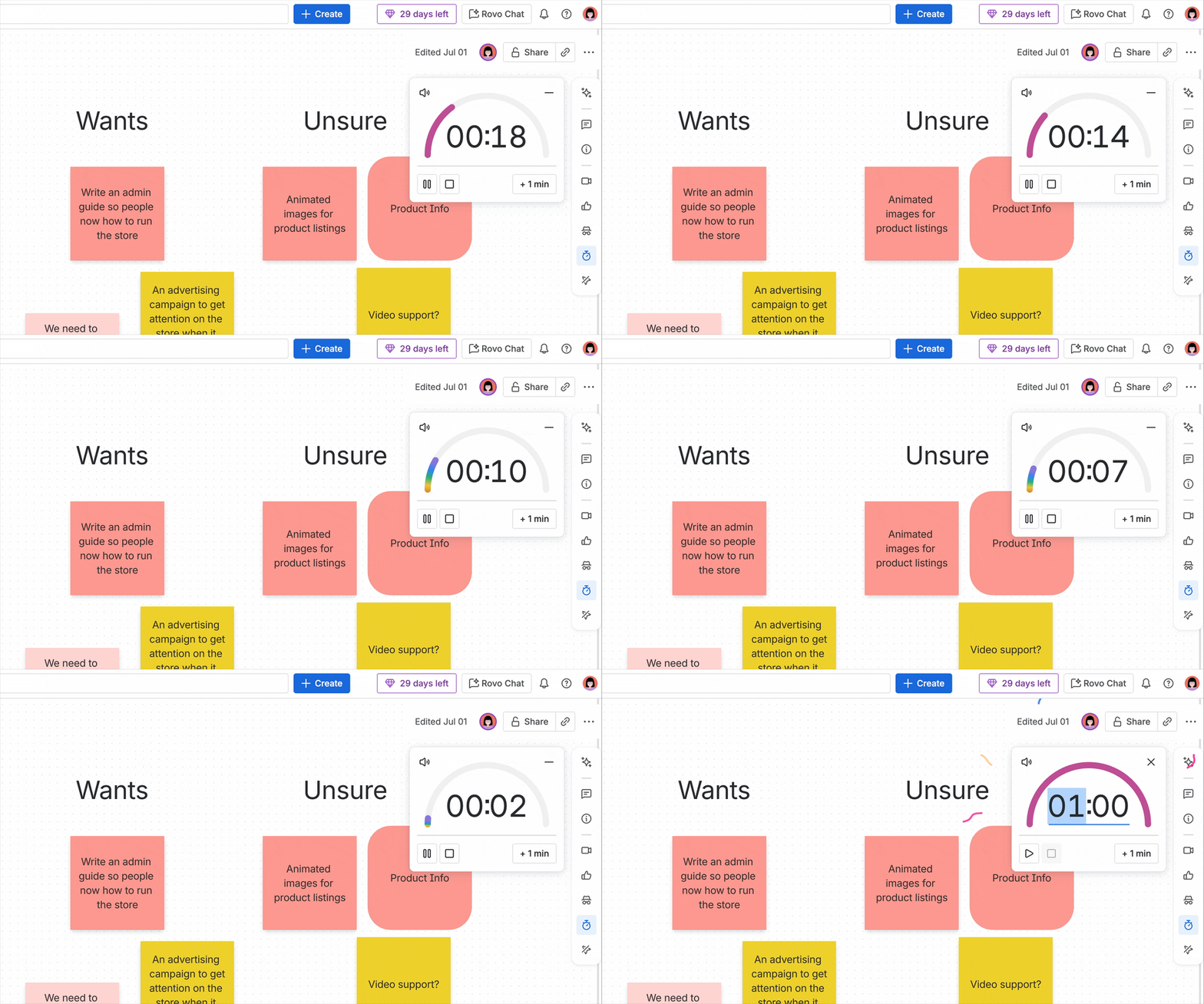
One of the biggest challenges in any meeting is keeping track of time. A little small talk here and there is great for team spirit, but every meeting should also stay on track. That’s why, during our swag store brainstorming, we use the whiteboard’s timer feature. It gives every team member the same amount of speaking time. When the countdown ends, you hear a sound cue and see a burst of confetti, a fun reminder that it’s time to move on.
Private mode for honest input
Seeing other people’s ideas and feedback can limit your own thoughts. That’s why Confluence whiteboards include private mode, a simple but powerful feature that lets everyone add their input at the same time without seeing what others are writing.
When enabled, sticky notes, comments, or ideas stay hidden until the round is finished. Once the timer runs out or the instructor ends the session, all contributions are revealed at once.
This way, everyone has an equal chance to share their perspective without being influenced by louder voices or team hierarchies. It’s especially helpful during retrospectives, brainstorming sessions, or any activity where you want to encourage honest, unfiltered feedback.
Prioritizing ideas with stamps
When you’ve collected all the awesome ideas of your team, it’s time to prioritize them. Best practice is to give each contributor a set number of votes and use then stamps or dot voting to see which idea brings the most value for the team.

Asynchronous Collaboration
Nowadays, we have the luxury of being able to work from almost anywhere. Teams are spread across continents and often across time zones. This makes asynchronous collaboration an essential part of our daily work.
In Confluence whiteboards, this type of collaboration comes to life when team members can open a board at their own pace, add sticky notes, leave comments, or use stamps and reactions. Everyone’s input is captured in one place, and the conversation keeps moving forward even without a live meeting.
Level Up Your Asynchronous Work in Whiteboards
To make sure your swag store project succeeds even when your team can’t meet live, let’s explore the whiteboard features that support asynchronous collaboration.
Leave your feedback with comments
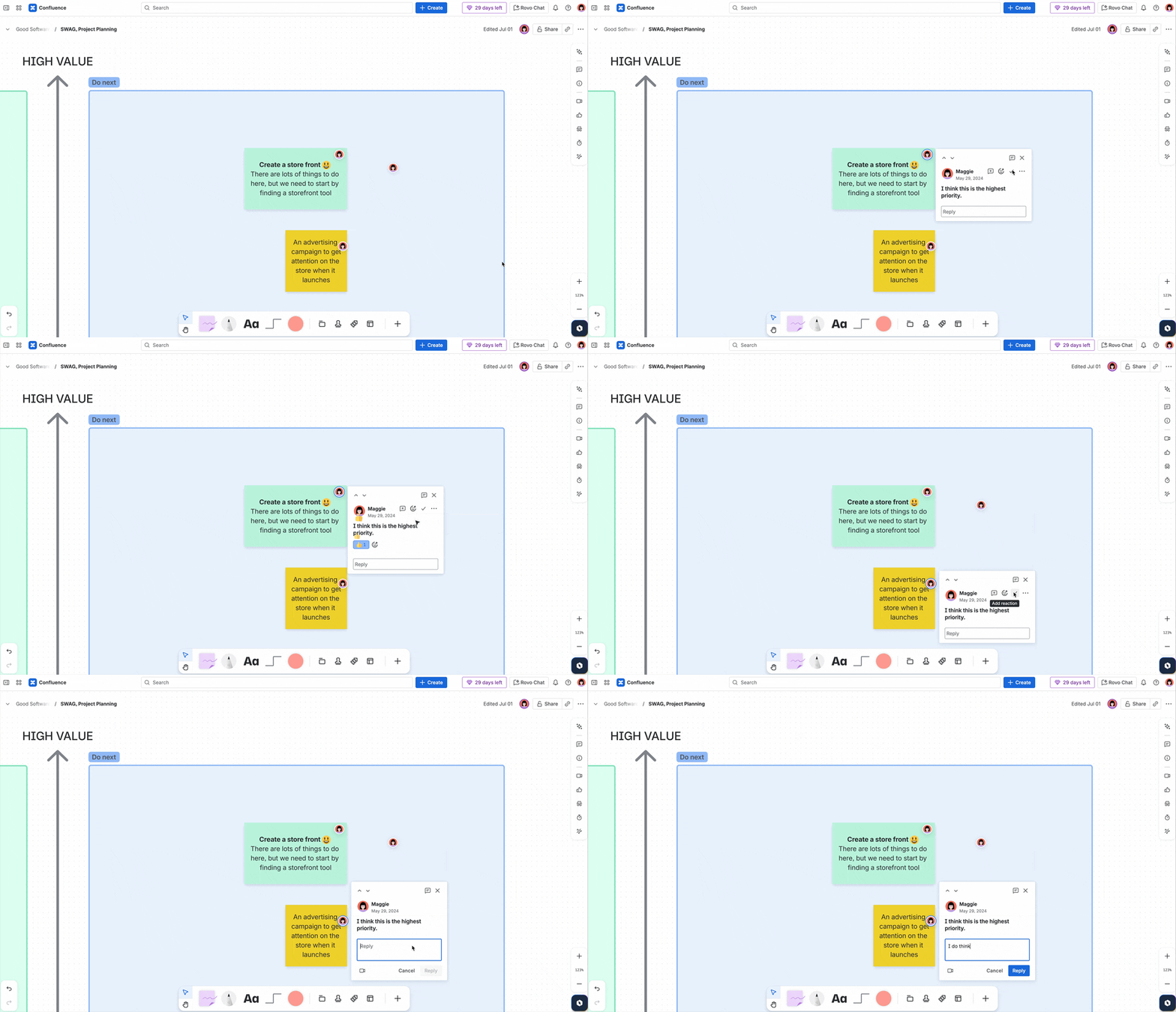
You can easily leave comments on your whiteboard. Once you’ve added a comment, your profile icon appears on the board. When someone clicks it, your comment is revealed, and others can either reply with their own words in a thread or react instantly with an emoji, just like you would in Confluence inline comments.
Smart Sections in Confluence Whiteboards
Sections in Confluence whiteboards are a simple way to bring order to the chaos. They let you group sticky notes, shapes, and ideas into clearly defined areas of the canvas, which makes it easier to guide a workshop or keep multiple teams working side by side on the same board. When you move a section, everything inside it moves with it, so your work stays organized.
If you’re on Confluence Premium or Enterprise, you can take this idea further with smart sections. These add a layer of automation that connects directly to Jira.
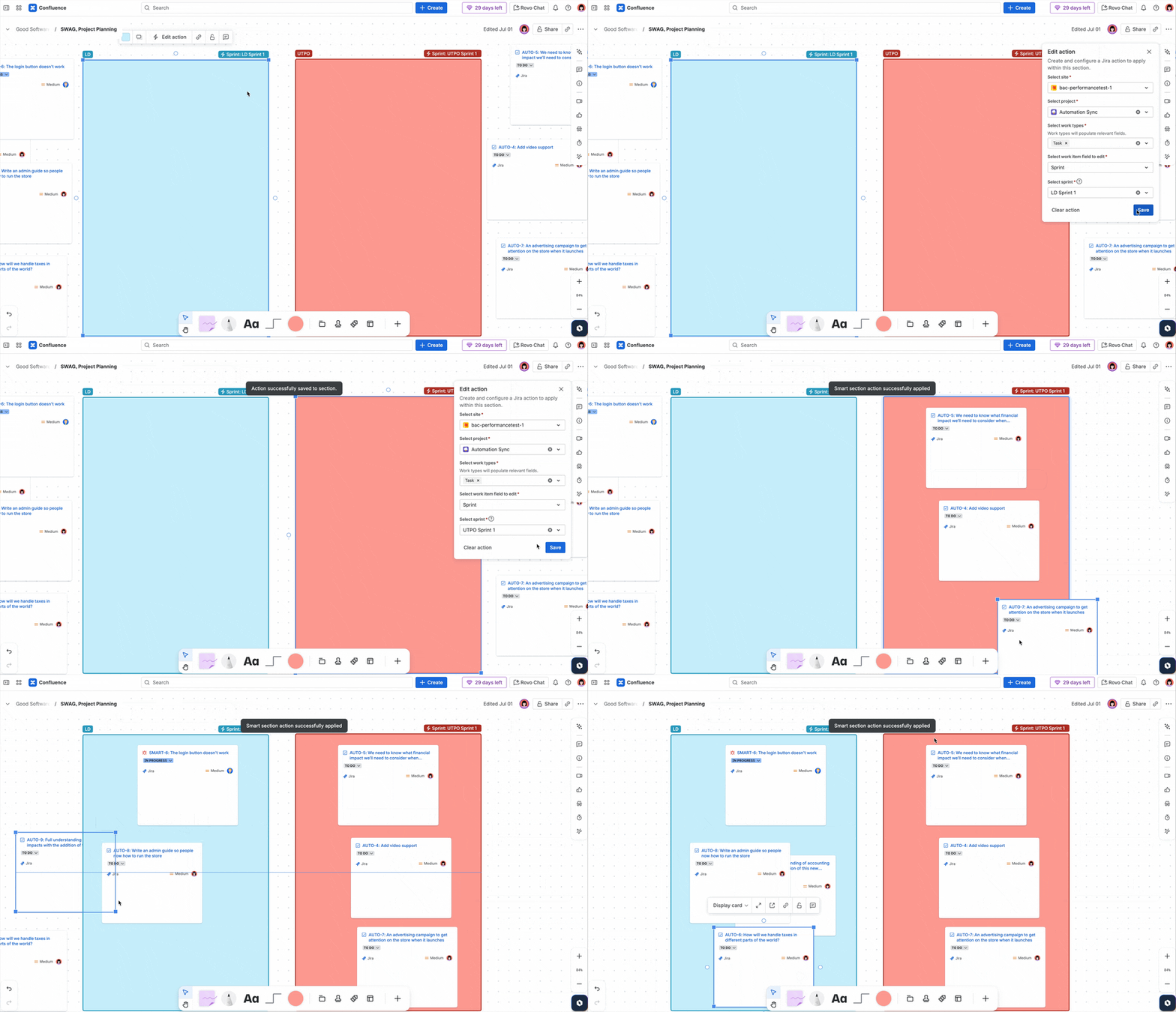
For example, in our swag store brainstorming session, we first turned our prioritized sticky notes into Jira tickets. Then, we created two smart sections for Sprint 1 and Sprint 2. In the configuration panel, you simply pick the site, project, and issue type, and then choose which field should update. From then on, dragging a Jira issue into Sprint 1 automatically updates its sprint value in Jira. Move it into Sprint 2, and it’s reassigned there instantly.
Want to see how it works in practice? Watch our video where we walk through using smart sections step by step.
Whiteboard Preferences: Make the Canvas Yours
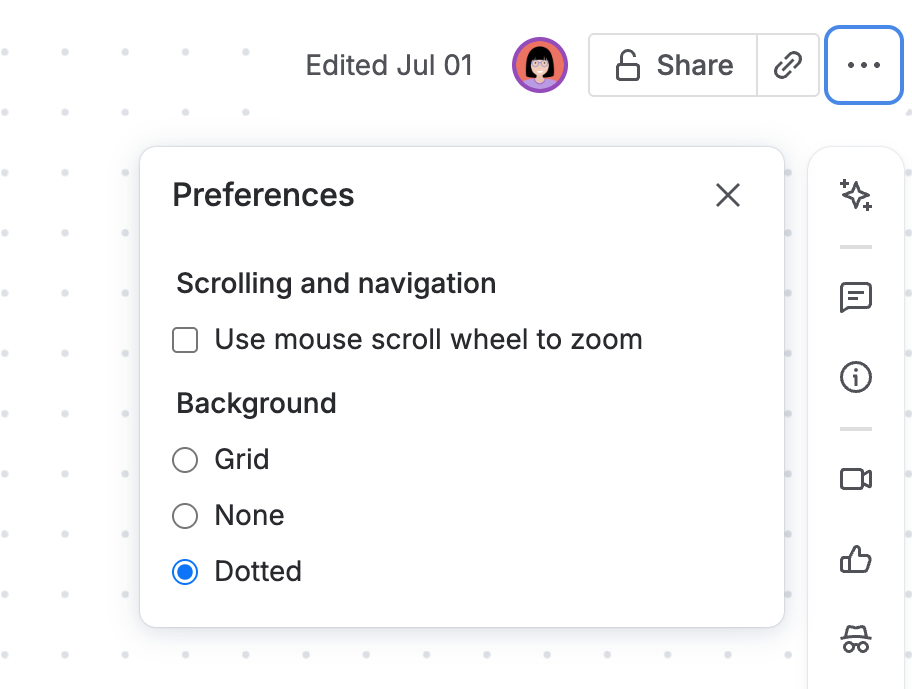
Every person works a little differently, and Confluence whiteboards let you adjust the basics, so the canvas matches your style. In the preferences panel (found on the right-side toolbar), you can choose how to navigate. Do you prefer to use the mouse scroll wheel to zoom? One click in the preferences, and you can do that. You can also pick your background as grid, dotted, or without any structure.
Jira Integration in Whiteboards
Instead of switching tools, bring Jira work items right into your whiteboard. With search and JQL support, you can import multiple items at once so everyone is looking at the same information during your collaboration sessions. With one click, you can convert a sticky note into a Jira work item, so the team’s ideas instantly become actionable tasks. When discussions turn to dependencies, smart connectors let you draw dynamic links between Jira work items.
Visualize Dependencies with Smart Connectors
Say your Design Swag Mockups work item depends on Finalize Logo Update. Just draw a line between the two work items on your whiteboard and choose a relationship type, such as “blocked by.” The link instantly appears in Jira, so everyone knows where dependencies exist and what’s holding things up.
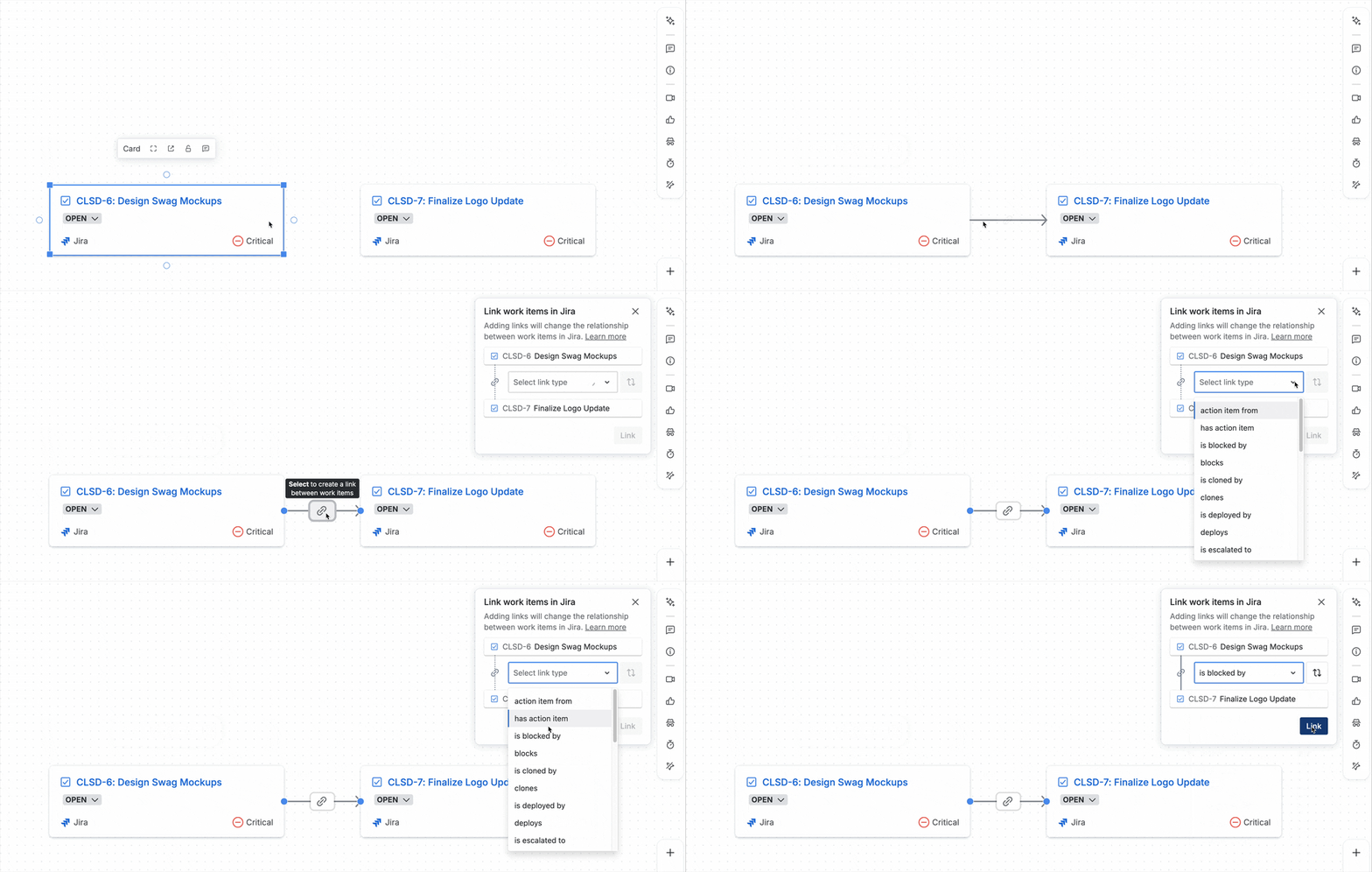
Smart connectors are available on Confluence Premium and Enterprise plans.
Keep in mind: If you simply delete a line between two Jira work items on your whiteboard, the link in Jira itself is NOT automatically removed. If you want to remove the connection on Jira, you have to use the “Unlink” option in your whiteboard.
Smart Create with Rovo
Remember the moment you drafted your swag store plan on your whiteboard? Now imagine you can skip the blank-canvas stare and jump straight to structured ideas and visuals. That’s exactly what Smart Create powered by Rovo brings to the table.
With that feature, you can turn a simple prompt into whiteboard content in just a few clicks. Because it draws on your existing Confluence and Jira content, the AI isn’t working in a vacuum. It knows what you’re talking about, helping you go from raw ideas to organized visuals faster.
Confluence Whiteboards: Features by Plan
|
Feature |
Free Plan |
Standard Plan |
Premium & Enterprise Plans |
|---|---|---|---|
|
Active board limit |
3 per user |
3 per user |
Unlimited |
|
Board permissions |
Not included |
Granular controls |
Full control |
|
Smart features |
Not available |
Not available |
Full access to smart sections and smart connectors |
Confluence Whiteboards for Collaboration
With these tips and tricks, you can now improve your work with Confluence whiteboards. And if you want to see how Atlassian’s own team uses whiteboards to connect ideas, watch our exclusive livestream with Emily Ditchfield, Senior Product Manager for Confluence whiteboards.