Statistic says, knowledge workers spend roughly 1.8 hours each day (about 9.3 hours a week) just searching for and gathering information. That's nearly one full day lost every week to lookups, not doing actual work.
Confluence databases help you get that time back by structuring your content, keeping it synchronized, and making sure your team spends more time building and less time hunting.
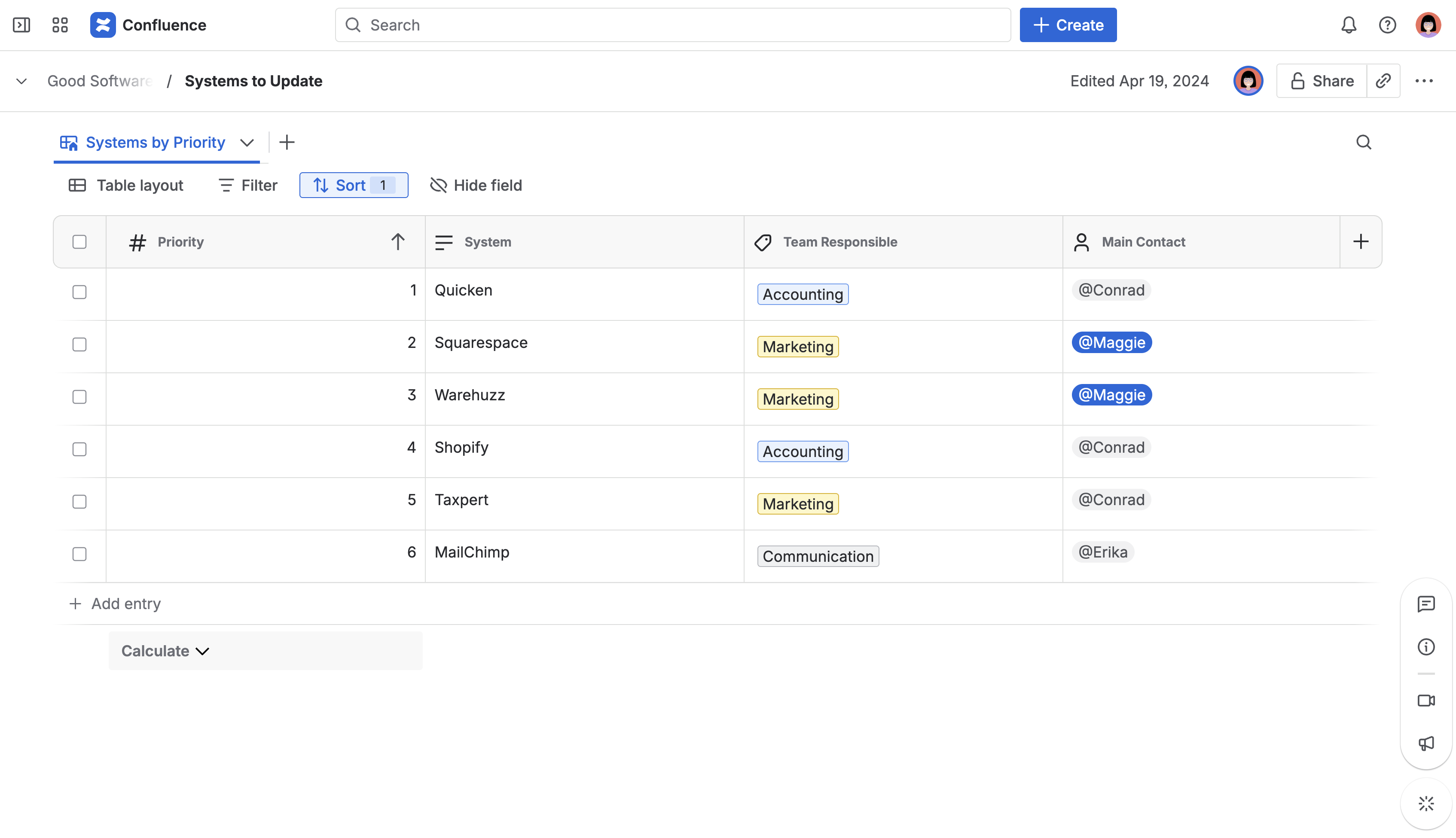
In this guide, you’ll learn what Confluence databases are, how they work, and practical tips for using them in real-world scenarios. We’ll also share examples and best practices from our own experience at K15t.
Let’s go!
The Problem With Static Content
Most teams start out by organizing information in Confluence pages and tables. It works well, at first. But as soon as details change, things get tricky. Maybe someone updates a project status, a team member joins or leaves, or a deadline shifts. Suddenly, you’re updating the same information in multiple places, and it’s easy for pages to get out of sync.
This is the classic “table trap”: content looks current, but it might not be. That’s where Confluence databases come in. Instead of duplicating information across pages, you can manage structured content in one place and display it wherever it’s needed. Update it once, and it’s reflected everywhere the database is embedded.
What Is a Confluence Database?
When you hear the word “database”, you might picture a giant spreadsheet, a wall of SQL queries, or a developer muttering something about indexes.
But in Confluence, a database is much simpler than that. It’s a smart, structured table that helps your team manage and reuse content more efficiently. No code, no config files. Just flexible building blocks for better information management.
Originally developed by K15t, Confluence databases were introduced in late 2023 as part of Atlassian’s move toward more connected, modular content. They’re available to all Confluence Cloud users.
What makes a Confluence database different from a regular table?
-
Each column has a specific field type, like user, status, tag, date, or link.
-
Each row represents a single dataset (for example, a project, a contact, a piece of content such as a page) that you can update once and display in multiple places.
-
You can create different views, such as boards for workflows, cards for people, or tables for detailed lists, to fit your needs.
-
Filtering and sorting help you keep information organized without changing the underlying structure.

One of the best features in Confluence databases is the ability to connect entries across multiple databases using entry fields. Instead of copying the same information into several places, you store it once and link to it wherever it’s needed. This keeps your content consistent and reduces the risk of outdated or conflicting data.
🛠 Now, to be clear, Confluence databases are not a replacement for a full-blown CRM or complex project management system. But if you’re managing structured information like contacts, tasks, events, or content, they’re a smart and lightweight option. Especially for teams that want to stay organized without adding too much overhead.
Want the technical breakdown? Atlassian’s official support doc has you covered.
How to Build a Database Without Breaking Anything
Here’s something we’ve learned the hard way: you don’t need to build the perfect setup on day one.
Start with something small and real, like a content backlog or a team directory. Add only the fields you truly need. Create a few views. Try things out and see what works.
If you jump into building a giant database with 20 columns and 100 rows, and then realize one of the field types isn’t right, you could lose the data in that entire column when you make a change. Confluence will warn you, but fixing it still means re-entering everything manually.
🎥 Watch our video on how to get the best out of your databases.
https://youtu.be/nJ7Tcfd7jok?si=myWo40JKy6oWey-u
Sounds a bit too abstract? Let us give you some examples of well-structured Confluence databases and use cases.
Database Example 1: Plan and Track Content Creation
At K15t, we create a lot of content. Like, a lot. Blog posts, videos, help articles, talks for events.
And to keep all that moving without losing track of what’s in progress, what’s reusable, and what someone swears they already published last month, we use a Confluence database to manage our content backlog.
Every new idea starts as a row. Each row has fields like:
-
Content type (blog post, video, guide)
-
Summary and main idea
-
Priority
-
Author
-
Date added
-
Status (Idea, Drafting, Published)
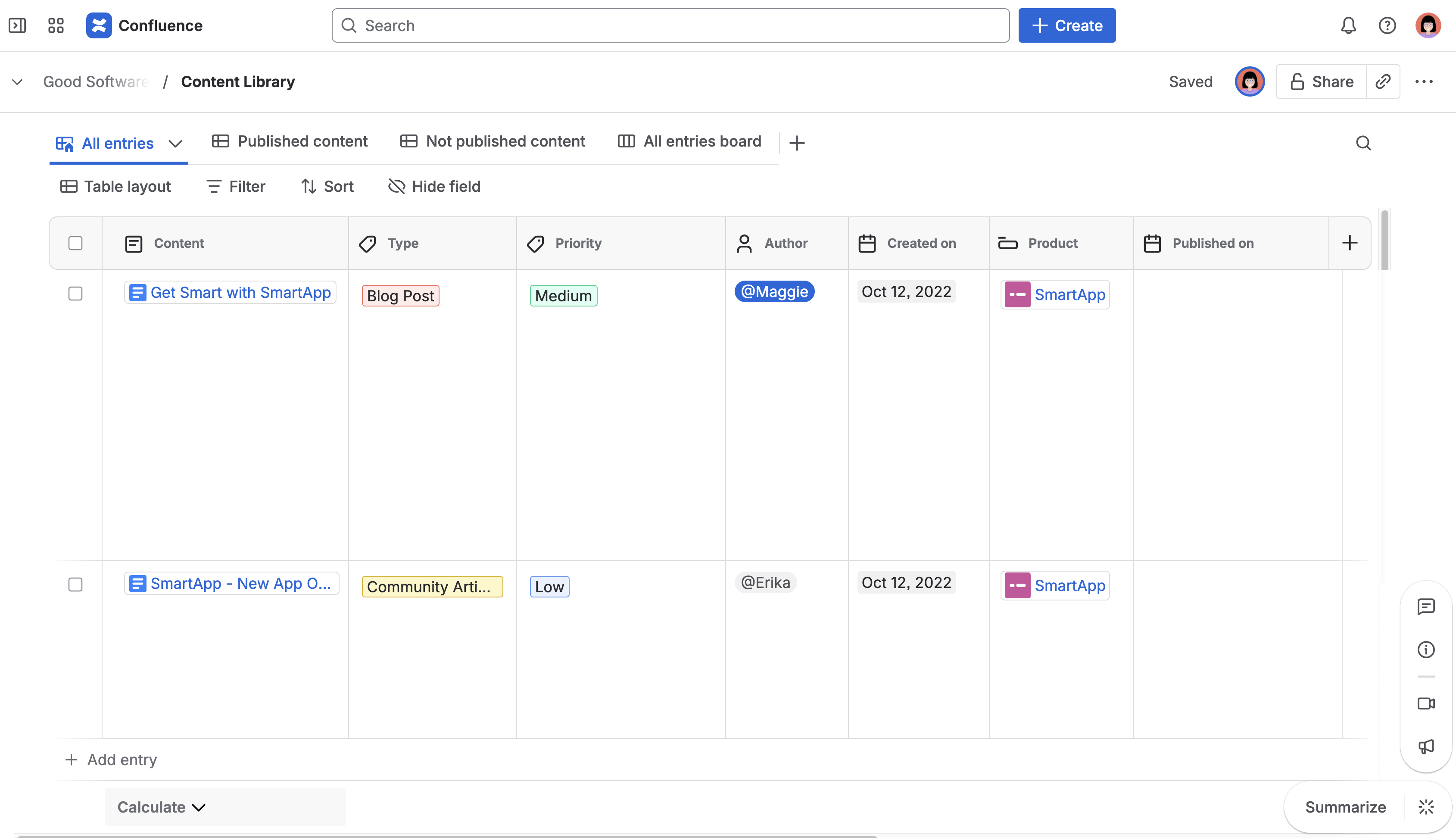
And because some content pieces come with images (like thumbnails or share cards), we use image fields to attach them directly to the database entry.
🎥 Watch:
https://youtu.be/HrK9N_ZclCY?si=sSW76vJuk8WQRehq
Pro tip: we also link each entry to its own Confluence page (like a working draft or notes doc), so it’s easy to jump from overview to detail in one click.
Database Example 2: Manage Your Contacts with a Lightweight CRM
This isn’t Salesforce. It’s not meant to be. But if you’ve got hundreds of contacts (not thousands) you probably don’t need the whole sales cloud ecosystem.
At K15t, we use Confluence databases as a lightweight CRM to keep track of our contacts.
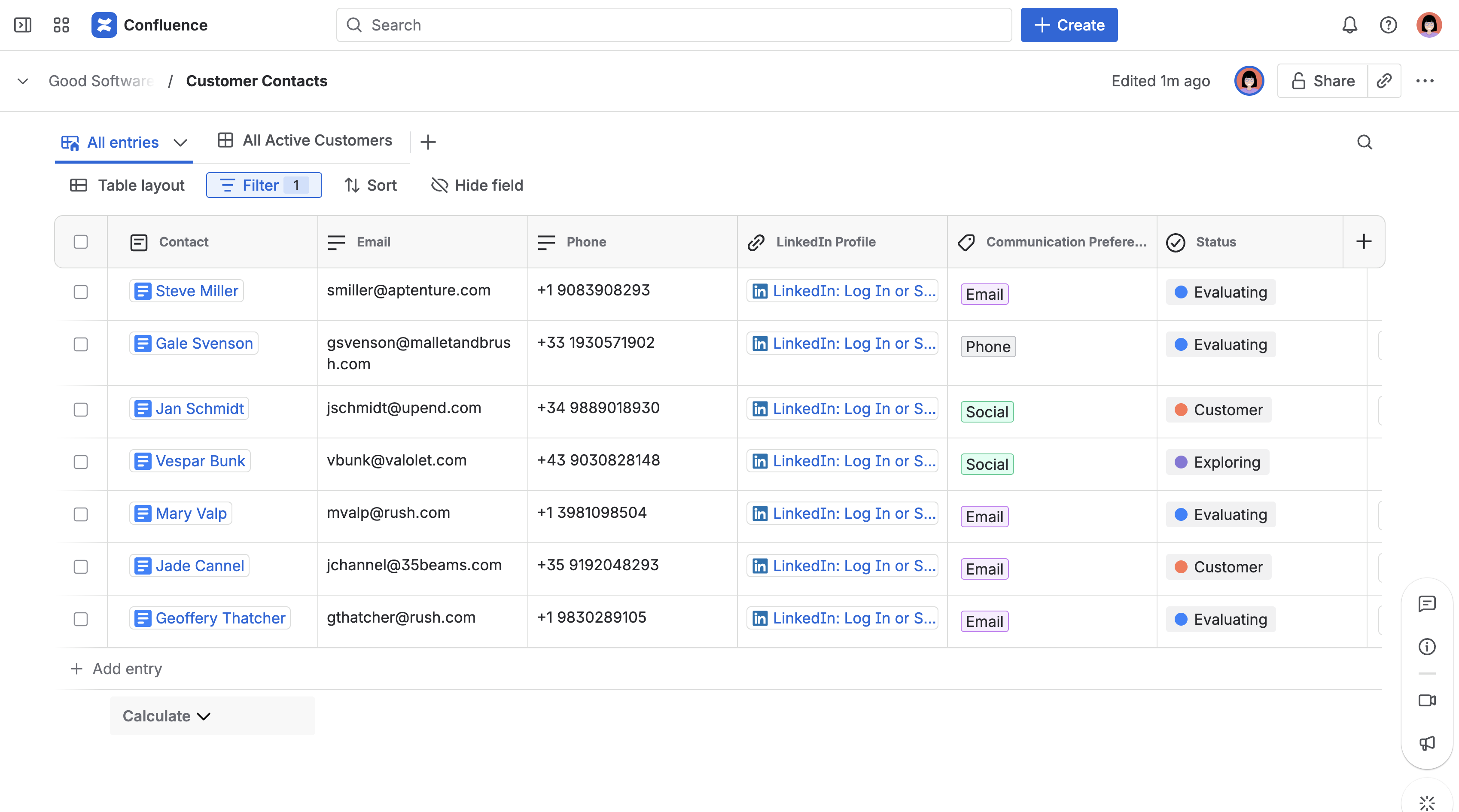
Each contact lives as a row, with fields like:
-
Name and company
-
LinkedIn profile (link field)
-
Communication preferences (tag field)
-
Status of our conversations
-
Linked sales entries (entry field connecting to another database)
You can filter views by region, communication status, or partner type. Display them in a card layout to make the data easier to browse.
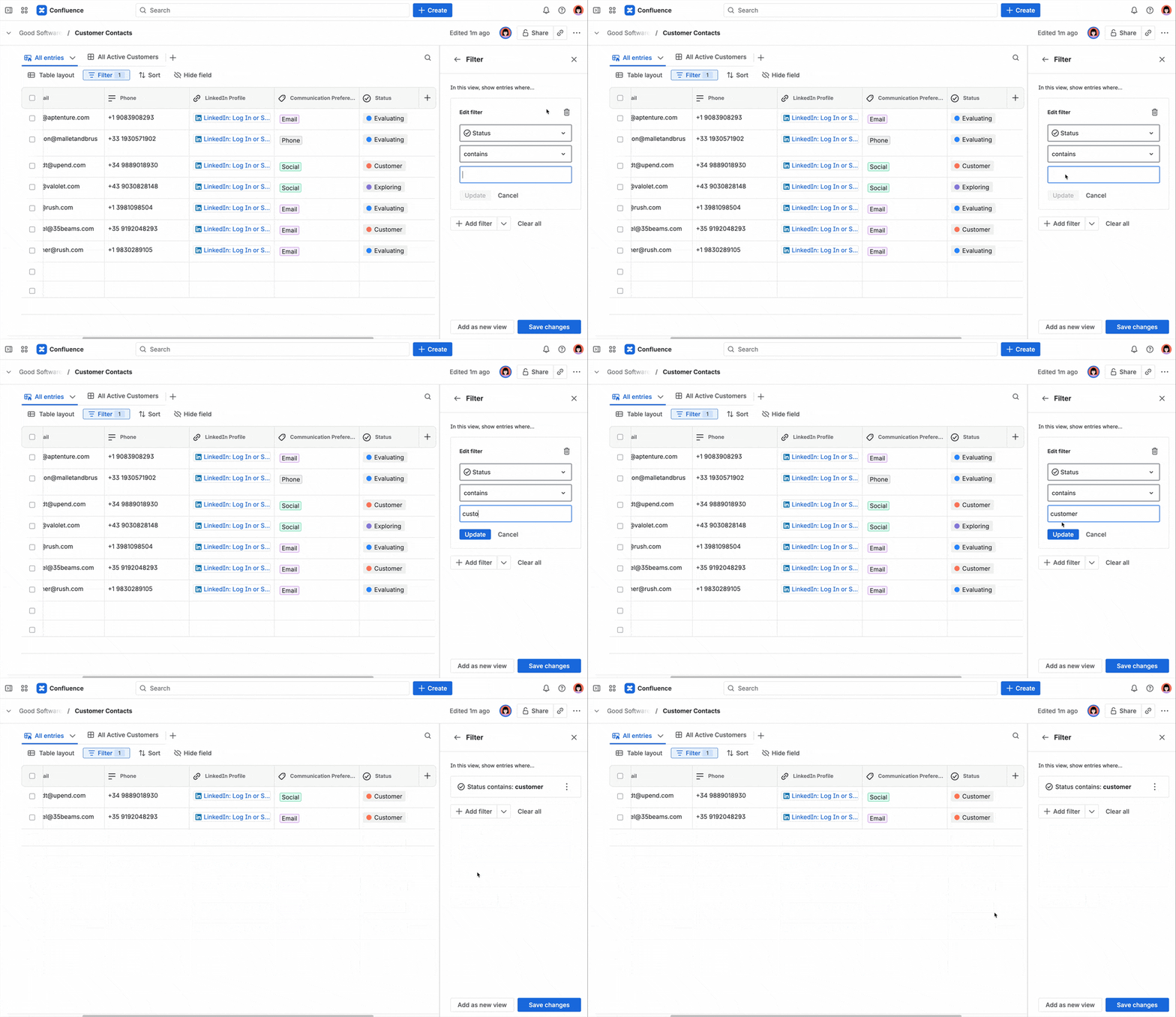
Then embed that filtered view in a team update or blog post using a Smart Link, and just like that, you’ve got live, searchable information right where people actually look.
🎥 Take a look how to use Databases for CRM:
https://youtu.be/wp05gxsAgSs?si=CqvgaNzMOmP23wYZ
Curious how this works in real life? Watch Matt walk through our contact database setup and show how we manage relationships without a full CRM.
One more thing: each contact can link to a dedicated Confluence page. That’s where we keep meeting notes, deal details, or history. And because it's connected to the database, updates stay in sync.
Database Example 3: Internal Directories and Resources
Whether you’re tracking people, projects, tools, or even your team’s lunch-and-learn sessions (we do), having everything in one connected, searchable place saves a lot of time and confusion.
We’ve set up several internal directories using Confluence databases. Some of our favorites:
-
A colleague directory with headshots, roles, expertise, and links to individual Confluence pages.
-
A teams and circles tracker that shows who’s working on what and how different groups connect across the company.
-
A learning resource library with abstracts, tags, hosts, and links to replays, so no good talk ever gets forgotten.
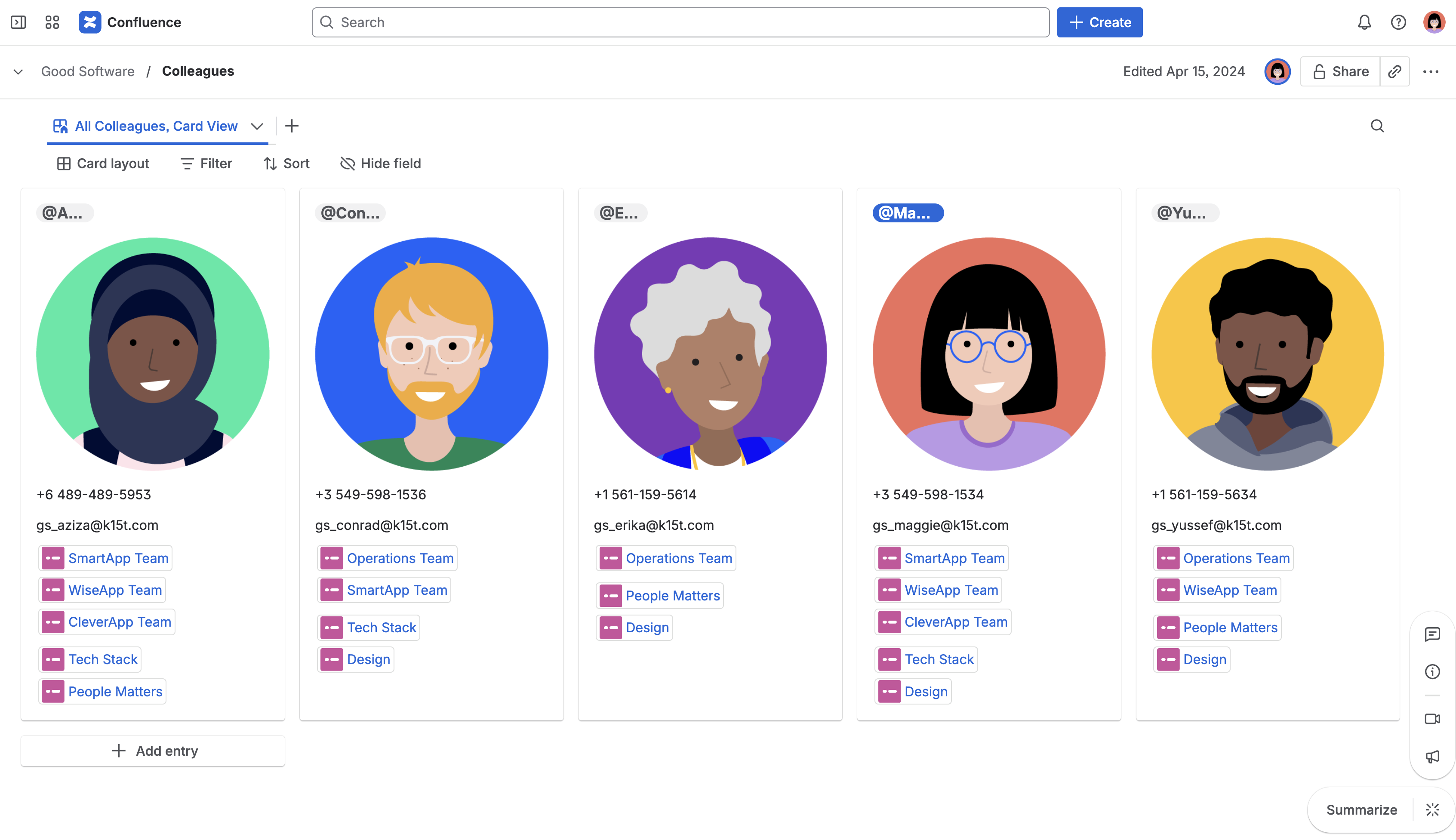
And the best part? These aren’t scattered across different docs or duplicated in different tools. They’re all connected. When someone changes teams or a new circle is formed, we update the database once and the change flows across everything that depends on it.
🎥 Get to know more about directory management with databases:
https://youtu.be/w10bJQNLPEU?si=zDTvnK_dFo-g9b_7
Watch our internal directory example in action and see how entry fields and smart views turn a simple database into a powerful, reusable resource.
Since Confluence databases support multiple views, you can show the same data as a visual card directory in one place and as a filtered team breakdown in another, all without duplicating anything.
Connecting Your Databases to Avoid Duplication
It might seem easier to copy and paste the same names or statuses between databases, but that leads to errors and extra work.
A better approach is to connect your databases using entry fields. These fields pull in information from other databases automatically. When you update something, like a person’s name or team, it updates everywhere that entry is used.
At K15t, we call this the “motherboard” model. Instead of putting everything into one massive table, we create small, focused databases for people, teams, content, and contacts, and then connect them with entry fields.
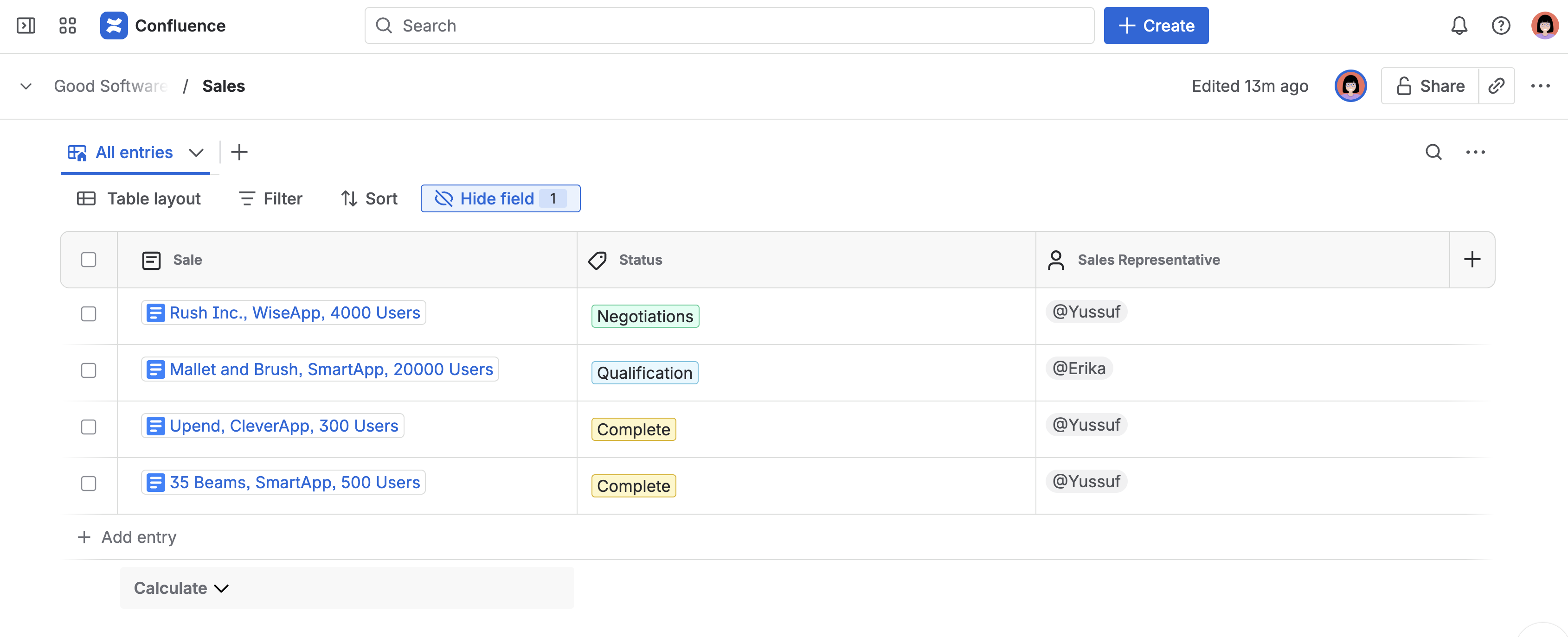
This keeps your data cleaner, reduces manual updates, and makes information easier to trust.
Pro tip: Use consistent field names across related databases like “Owner,” “Team,” or “Contact” so your views stay clear and easy to read.
Dos and Don’ts of Confluence Databases
Here’s a cheat sheet we wish we had when we started:
|
✔️ Do |
❌ Don’t |
|---|---|
|
Start simple with a test database before scaling. |
Don’t build a giant, complex structure on day one. |
|
Use entry fields to link data instead of duplicating it. |
Don’t copy the same content across multiple databases. |
|
Create views that answer specific questions. |
Don’t show every field to every user – it clutters the experience. |
|
Use default values for common inputs (priority, author, tags). |
Don’t leave frequently used fields blank or inconsistent. |
|
Use Smart Links to embed filtered views in pages and updates. |
Don’t expect teammates to dig for database pages. |
|
Use card/board layouts where visual structure helps |
Don’t force list views for everything. |
|
Check in with your team regularly. |
Don’t stick with a setup that’s no longer working. |
|
Name views clearly (e.g. “Upcoming Videos”). |
Don’t name it “DB_FINAL_v2_use_this_one”. |
|
Link to Confluence pages for deeper info. |
Don’t cram every note into a single database row. |
Save Time Using Confluence Databases
Confluence databases might be one of the most underrated features in the platform. They help you organize your team's information, keep it up to date, and share it where people actually need it, all without creating a maintenance headache.
At K15t, we use them every day, and we're still finding new use cases all the time.
So give it a try. Start small, set a few fields, create a view, and connect it to a page. You'll quickly see how much easier it is to keep your content flexible and consistent.
🎥 Want more inspiration? Check out the full K15t YouTube playlist on Confluence databases for more quick examples.