When content leaves Confluence as a PDF, it also leaves behind its context.
A page that was clearly marked as a draft, under review, or internal-only inside Confluence can quickly lose that meaning once it’s downloaded, emailed, or shared in a folder. That’s where watermarks come in.
With the latest release of Scroll PDF Exporter for Confluence, teams can now add watermarks to their PDF exports, making it instantly clear how a document should be used, shared, and interpreted.

Whether you’re sharing early drafts, running structured reviews, or working in a regulated environment, watermarks help bring clarity back to exported documents.
What Is a Watermark?
In the context of Confluence PDF exports, a watermark is a text-based label that appears behind or in front of your content in a PDF.
It doesn’t change the content itself. Instead, it adds essential context for the reader.
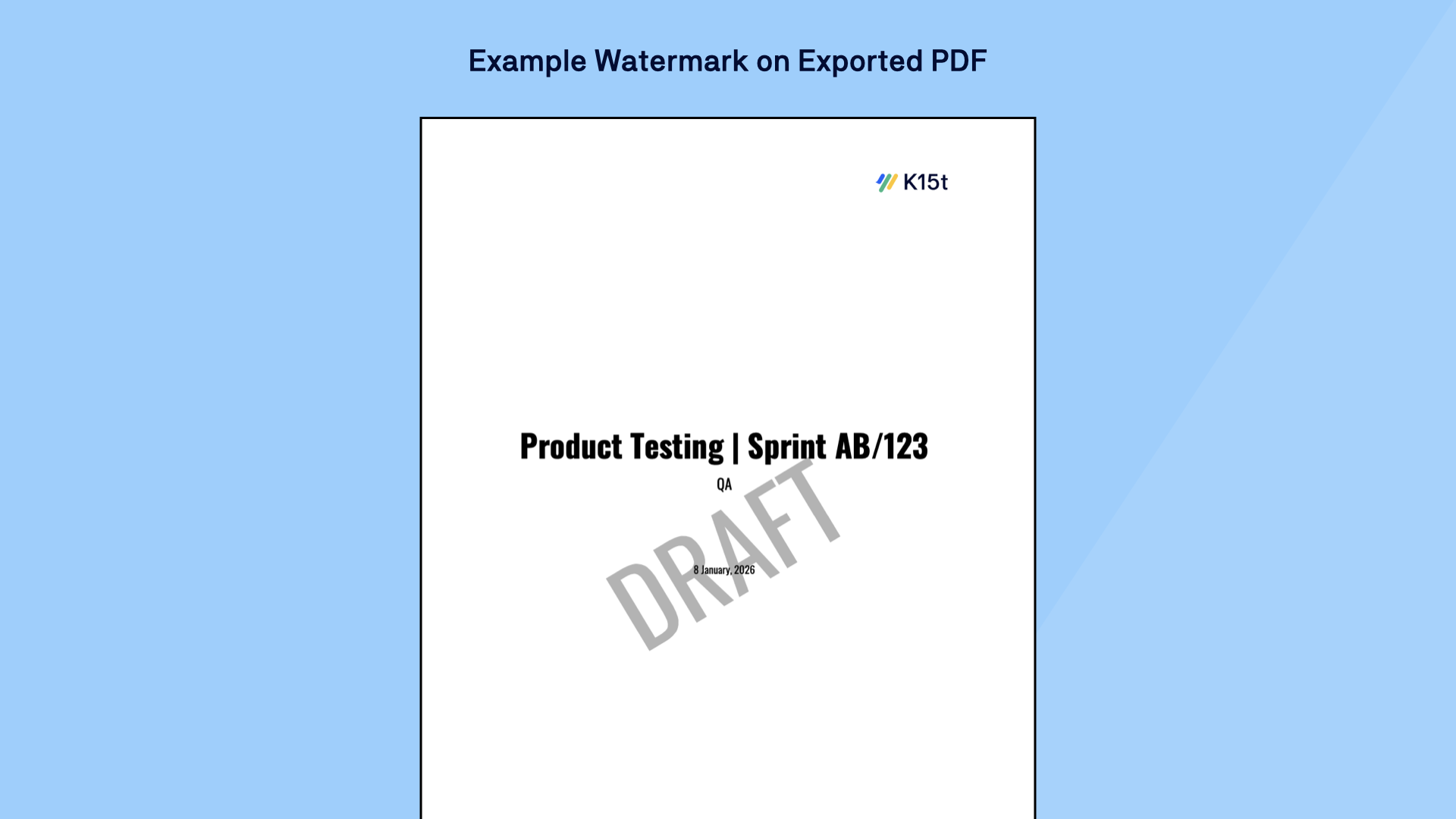
Common examples include:
-
Draft
-
Confidential
-
Internal Use Only
-
Do Not Distribute
-
Client Copy
-
Outdated
These labels act as lightweight signals that help recipients immediately understand the status, sensitivity, or intended use of a document.
Scroll PDF Exporter focuses on clear, text-based watermarks designed for document clarity and governance. Decorative logos or patters can be added using background images if needed.
When Do Teams Need Watermarks?
Watermarks are often associated with highly regulated industries – but in practice, most teams exporting PDFs from Confluence encounter situations where watermarks are useful. Here are the most common use cases.
1. Clearly Communicate Document Status
Inside Confluence, page status is obvious. Outside of it, not so much.
Once a PDF is shared via email, Slack, or a shared drive, it’s easy for readers to assume it’s final—even when it isn’t. A simple Draft or In Review watermark makes expectations clear at a glance and helps prevent outdated or unfinished content from being treated as final.
2. Prevent Accidental Sharing
PDFs travel quickly once exported. A document intended for internal use can easily end up forwarded, uploaded, or shared externally without context.
Watermarks such as Internal Only or Do Not Distribute act as visible reminders that the document should be handled with care—reducing the risk of accidental sharing.
3. Support Review and Approval Workflows
Many teams rely on structured review cycles involving writers, reviewers, subject matter experts, and approvers.
Watermarks help everyone understand where a document sits in the process – especially when PDFs are shared outside Confluence.
This reduces confusion, speeds up reviews, and prevents teams from using the wrong version at the wrong time. Make your approval process clearer by showing whether a document is:
-
Under review
-
Pending approval
-
Approved
-
Outdated
This reduces confusion, speeds up reviews, and prevents teams from using the wrong version at the wrong time.
4. Meet Compliance and Governance Requirements
For teams in healthcare, finance, legal, manufacturing, or other regulated environments, watermarks are often essential.
They can support:
-
Document classification policies
-
ISO or industry standards
-
Controlled document distribution
-
Compliance audits and regulatory reporting
In these contexts, watermarks aren’t just helpful – they’re a key part of maintaining clarity, traceability, and control.
5. Reinforce Ownership and Provide Context
Watermarks don’t always have to be warnings. They can also provide helpful context about where a document came from or how it should be interpreted.
Examples include:
-
HR – Official Template
-
Engineering Draft
-
Support Team Copy
This is especially useful when PDFs are shared across teams or departments.
When to Avoid Watermarks
Watermarks work best when they’re intentional. If every document is watermarked, readers may start to ignore them. And if a document is already clearly labeled, public-facing, or non-sensitive, a watermark may add little value.
Use watermarks where they improve clarity – not as a default for every export.
How to Add Watermarks to Confluence PDFs
With Scroll PDF Exporter for Confluence, you can add watermarks directly when exporting pages as PDFs. Watermarks can be fully styled, including:
-
Text
-
Font, size, and color
-
Transparency
-
Rotation and position
-
Placement in front of or behind content
This allows teams to create consistent, professional-looking exports that clearly communicate document intent.
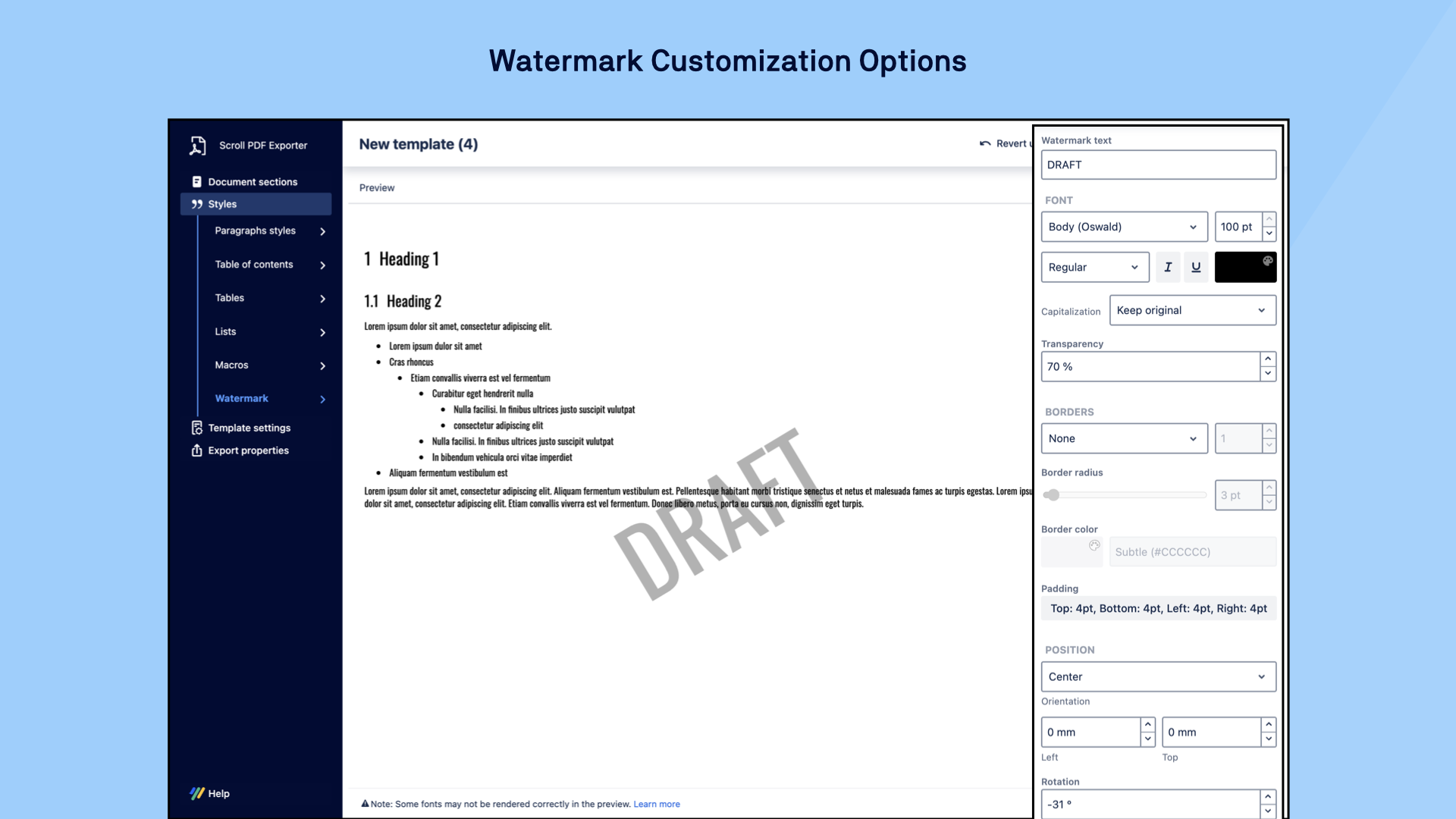
For teams with stricter governance requirements, watermarks can also be locked at the template level, ensuring that every export follows predefined classification rules.
At the same time, individual users can decide whether to include a watermark during export and –depending on template setup – use predefined text or enter custom labels. This balance keeps watermarks both controlled and practical.
Best Practices for Effective Watermarks
-
Keep text short (one or two words is often enough)
-
Use a consistent style across templates
-
Apply watermarks only when they add clarity
-
Rotate lightly if needed, but avoid making it distracting
The goal is clarity, not visual noise.
Examples of Useful Watermark Types
If you’re just getting started, these watermark categories work well across most teams:
|
Status indicators |
Access and distribution labels |
Contextual or purpose labels |
|---|---|---|
|
|
|
Looking for ideas on how to use watermarks? The PDF Template Library includes ready-made templates that show practical examples across different document types.
A Simple Way to Make Your Confluence PDFs Clearer
No matter what kind of content you export from Confluence, watermarks help ensure your PDFs are understood and handled correctly.
For some teams, they support compliance and governance. For others, they simply make sharing drafts, reviews, and final documents safer and more organized.
Either way, watermarks are a small addition with a big impact.
Already using Scroll PDF Exporter for Confluence? Add your first watermark to a template.


.png?cb=d11f99205833a1b1d2901313ffbfc87e)