
This week, you’ll learn how to make images and text work better together on your Confluence pages, and how to turn Confluence into a genuine, centrally managed, image library.


You put a lot of effort into making a video for your Confluence documentation because ‘everybody’s making them'. But the feedback’s bad, the video’s not working, and you have no time to update it.
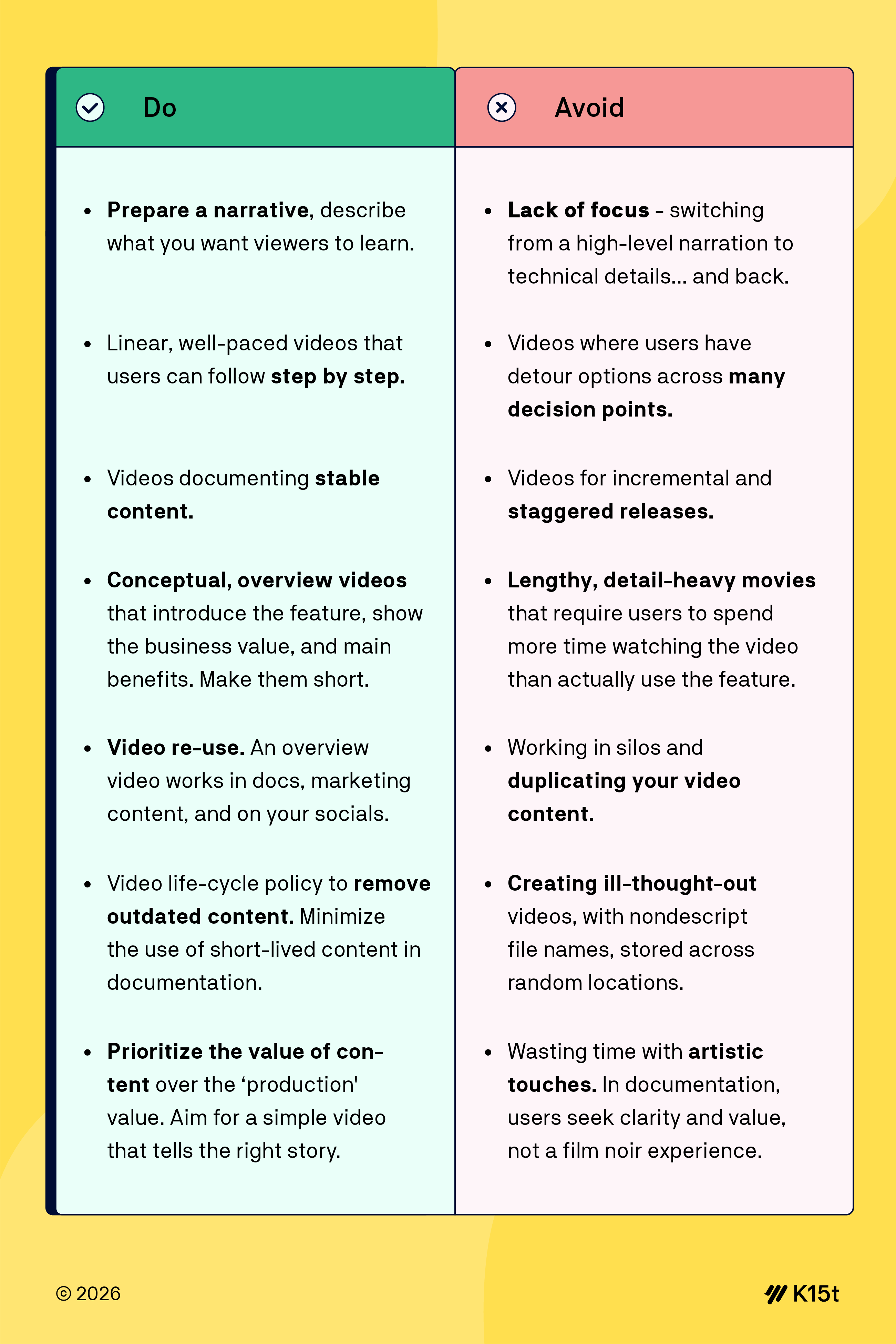
In documentation, videos tell the full story without interruption. Voice (and subtitles) provide context and reassurance. Viewers learn by watching. On the other hand, outdated videos, wavering narration, or wrong pace leave users disappointed.
You want to make videos that help user experience both in your documentation and the product you’re documenting.
How To Use Videos in Your Documentation
Videos take time to produce and even more effort to keep up to date. Don’t make videos just for the sake of it, always try to balance the effort and usefulness.
For example, fast paced product development may render any step-by-step video tutorial useless in a couple of days. Instead, focus on an ‘overview’ type of video that introduces the value of the new feature and the main talking points.
Good news is that you can create videos that tick all the right boxes directly in Confluence. How?
With Loom. Do a test run, record what you do on the screen and narrate. Don’t worry, you won’t have to transcribe the video. Loom does it for you which makes it ideal for creating instructional videos for your documentation, knowledge transfer, and elaborate comments. All without leaving the Atlassian comfort zone.
Videos in Confluence
Confluence supports MP4, MOV, AVI, and GIF formats so you can easily upload videos from screen grab apps and your mobile phone.
The most straightforward way to get a video into Confluence, unless you’re using Loom, is simply drag & drop a video file onto a page. It becomes an attachment, just like a regular image. Watch your storage, though. First, Confluence’s maximum attachment size is 100MB. Second, video files can be huge and if you’re a heavy user, they can easily eat up your 250GB allowance on Confluence Standard.
To avoid the storage constraints, consider linking to your large videos that you store online. Then you can simply copy/paste a YouTube link and, as you can see, Confluence smart link feature immediately does the rest.

Smart links will work in most use cases but if you need more control over the appearance of the video, use the Confluence iframe macro.
One more thing…
Rumors of screenshots’ demise from product documentation have been been greatly exaggerated. And if you’re looking for something in the middle between images and videos… Look at the Graphics Interchange Format. Also known as GIF. It’s correctly pronounced as JIF. Or GHIF...?

Create and edit Confluence content with Rovo
Atlassian has souped up its AI agent Rovo with a neat tweak that seems to be geared towards… writers. Especially documentation writers.
Tell Rovo where to focus (Jira work item, Confluence content item, or a website, tell it what to do, and Rovo will draft a page. You can directly edit or prompt for refinements. When you’re happy, tell Rovo where to save it - which space and parent page.

Live: Let's Create Rovo Agents, Together
Join our own Matt Reiner on February 25, 2026, as he explores creating Rovo agents with best practices in mind. You'll learn why it’s important to dedicate time to:
💭 Dreaming
🧪 Experimenting
💬 Prompting
🗯️ Re-prompting
😠 Getting frustrated
🙇🏻♂️ Stepping away
✨ Coming back
💛 And maybe striking gold
We'd love you to register for this Atlassian event and join us in a LIVE stream.
Benefit from Monthly Confluence Tips

Join our Monthly Dose of Confluence newsletter and discover smarter ways to work, publish, and collaborate in Confluence.


