
This week, you’ll learn how to make images and text work better together on your Confluence pages, and how to turn Confluence into a genuine, centrally managed, image library.


Handling images in Confluence may feel uninspired. Drag & drop to put an image onto a page. You move on to a new image. Deeper in the user interface, Confluence offers several ways for better image-and-text integrations and opens the door to new use cases.
Images & Words
A picture might be worth a thousand words if it’s placed correctly. The visual relationship between the images and the words amplifies the meaning. In Confluence, you have several options to arrange both assets for perfect information alignment.
Precise formatting
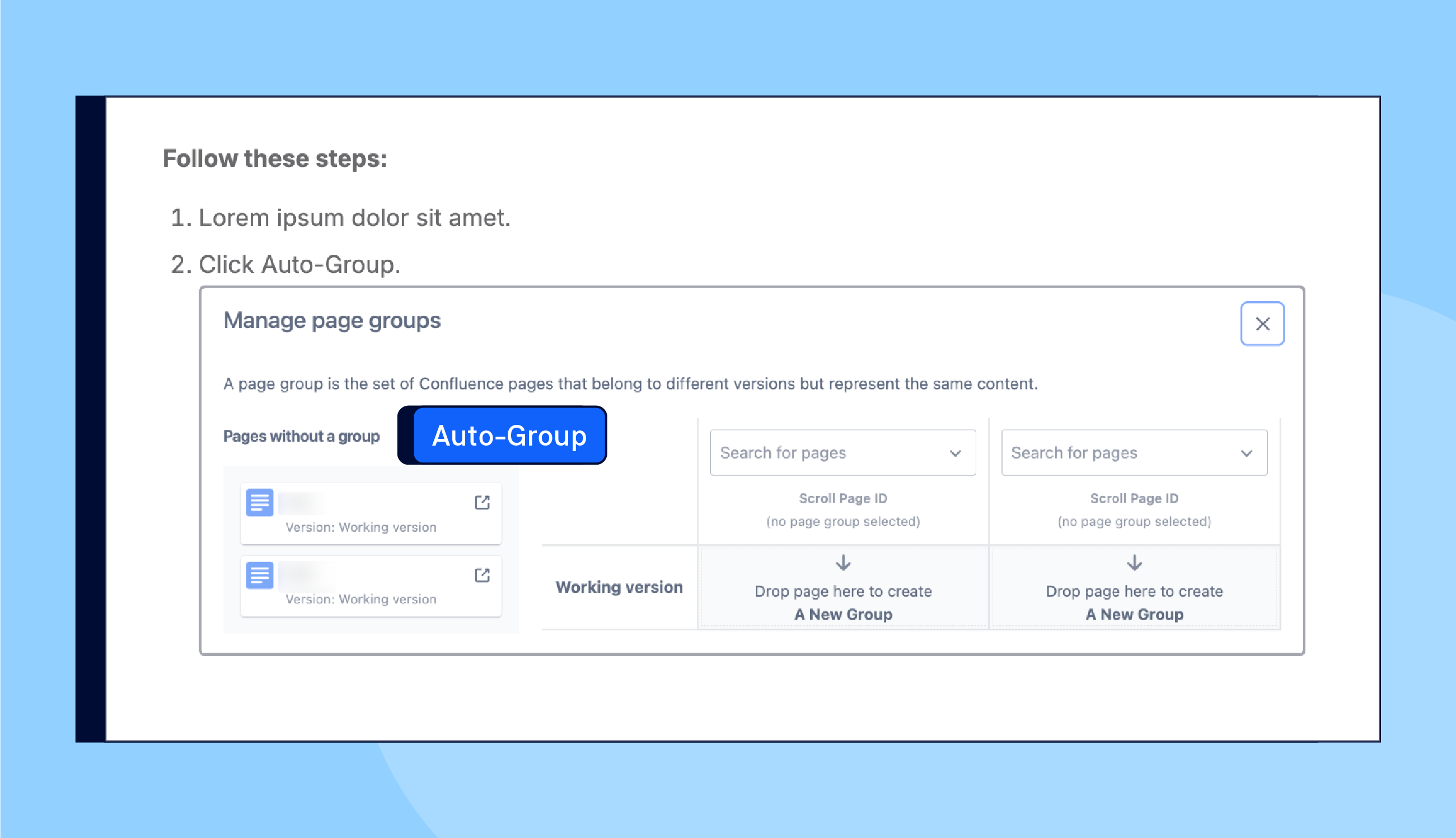
Use Shift-Enter to align the image with a specific step in a numbered list. This keeps the image at the same indent level, so your readers can make an immediate connection between the instructions and their actions.
Wrapping
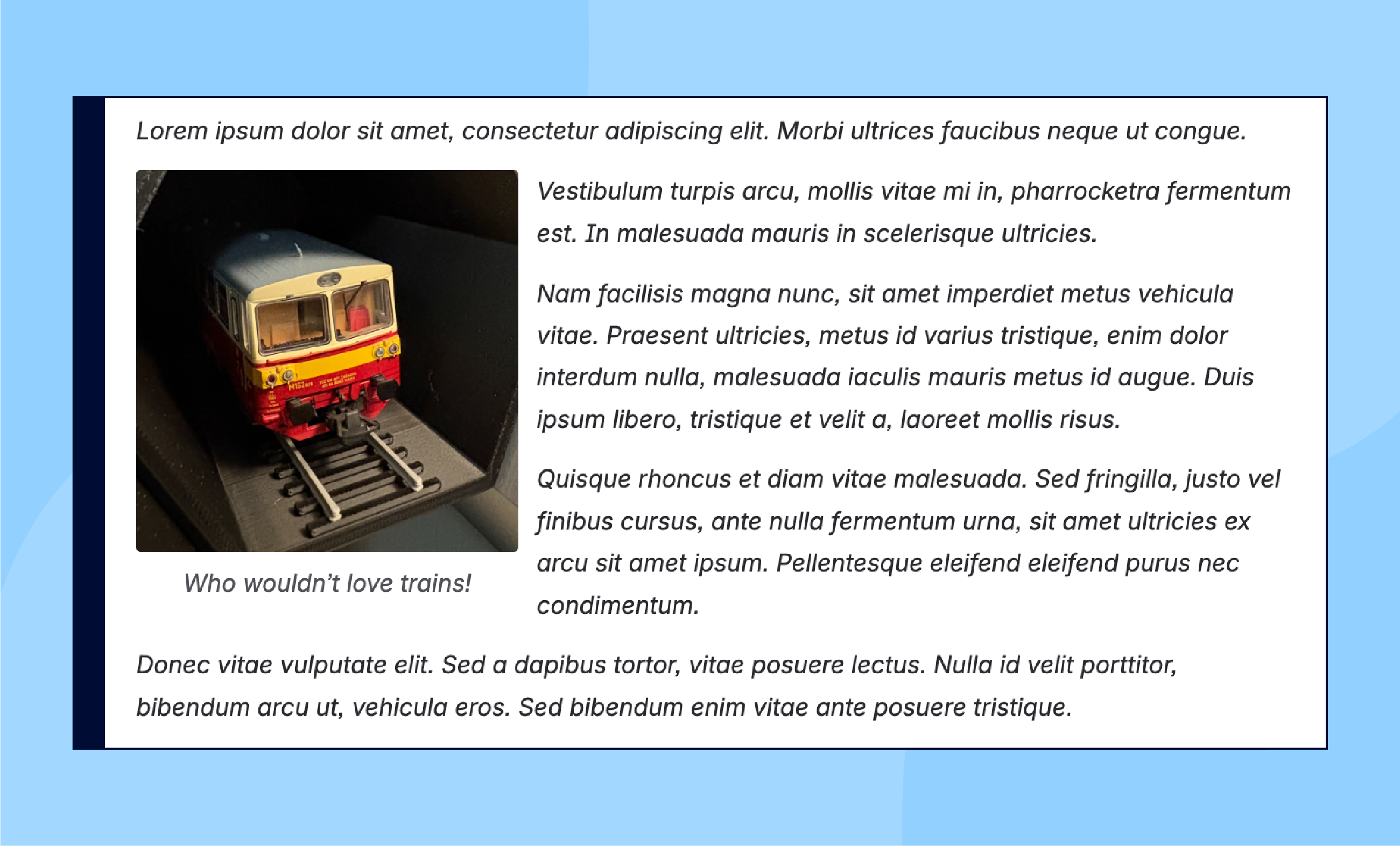
Use the Wrap option to nest images within a body of text. This may be just an aesthetic trick to make large chunks of text easier to read. But you can also align visual and textual information in a manner that does not interrupt the flow of text.
Column arrangement
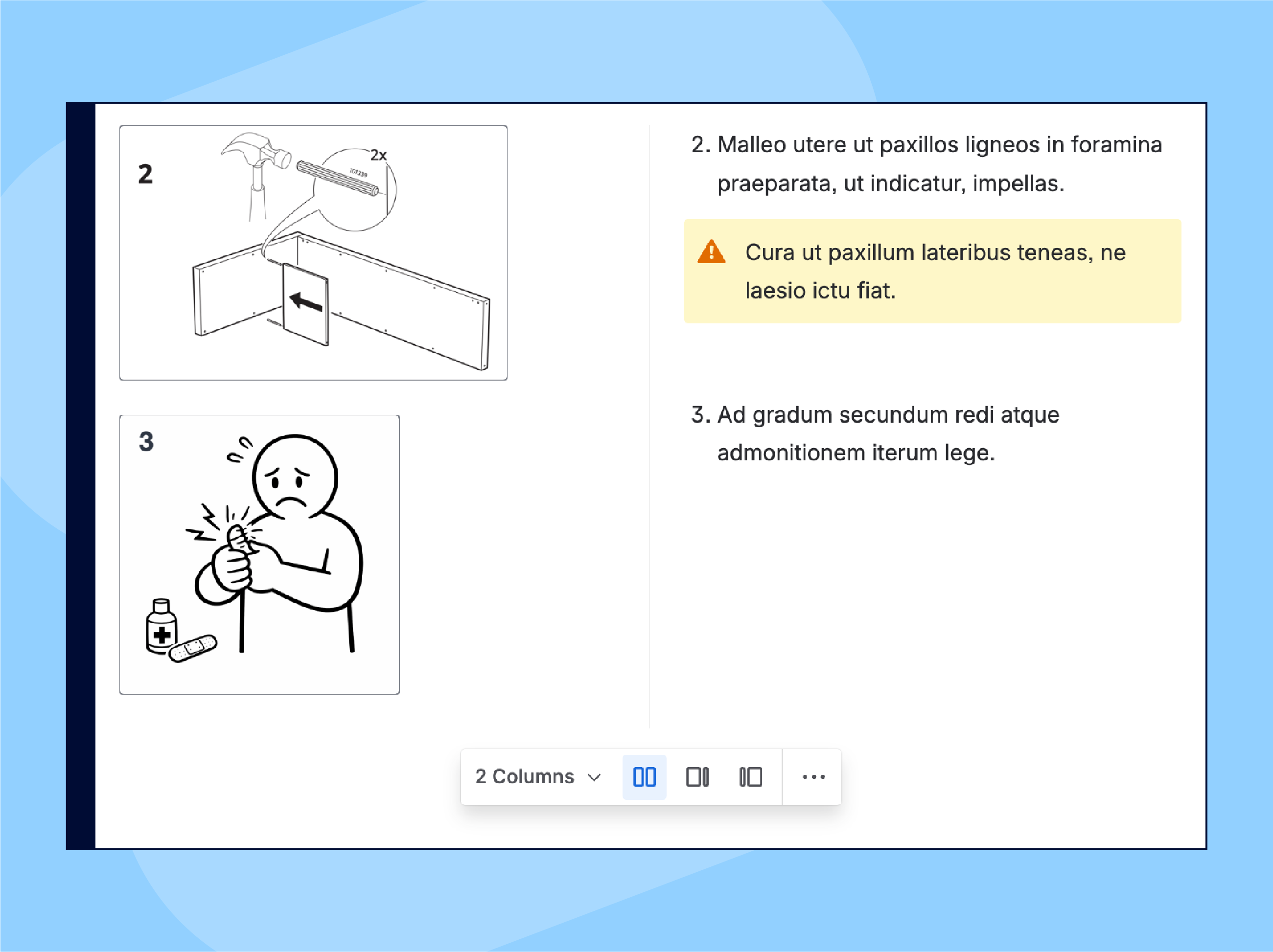
Use Layouts for side-by-side arrangement of images and text. This turns Confluence into a platform for creating genuine user manuals – from furniture assembly, tools operation, to hardware interfaces.
Confluence as an Image Library
Images age. Just like the picture of Dorian Gray, images in your documentation deprecate when circumstances change. User interface evolves. Hardware components are added. A new team photo is needed. As with any content on a large scale, the life cycle of images is not optional.
If you just have single-use images on individual pages, a little bit of page attachment hygiene (deleting unused versions immediately) works.
But that doesn’t scale if you have hundreds of images, many of which are used across several pages. Or you perhaps also have a central library of approved images – product photos, screenshots prepared by your design team, etc.
So what are your options?
Image as a Link
Use the Link option (Add image menu on the Confluence toolbar) to load images from a remote, centrally managed HTML image gallery.
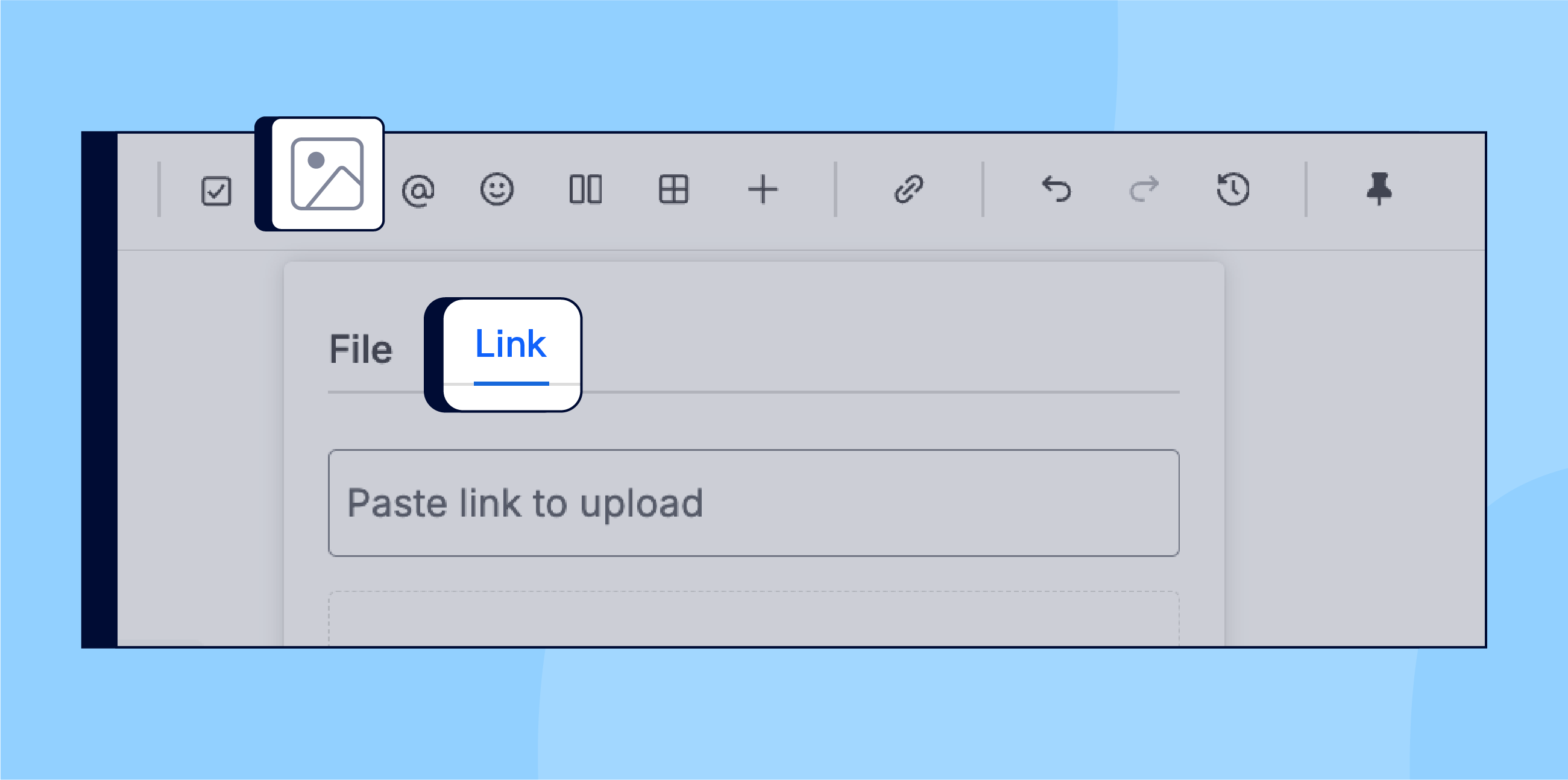
Image as an Excerpt
Image as an excerpt brings the central library concept into a Confluence space.
Imagine a space where each page contains only images that have something in common, e.g. they’re all photos of a single product. However, every single picture sits within its own Excerpt macro.
When you need to use a particular image in another space’s page, simply use the Insert Excerpt macro. The image will load exactly where you want it to be – in a list, in a layout column, or in regular text.
This method creates a centrally managed image hub right in Confluence.
At K15t we’re using the excerpt approach in our product documentation. Once we publish documentation with our app, Scroll Sites for Confluence, excerpt-sourced images are displayed as any other image that was directly attached to a Confluence page.
Want to Learn More Confluence Images Tips & Tricks?
We transformed years of experience in creating visuals for documentation into a deep-dive article where we expand on topics covered in this newsletter, discuss how to avoid common screenshot mistakes, look into image managing policies, and show a couple of image hacks.
For example, you'll learn how to give every page in a Confluence space unifying visual identity with just a couple of clicks.
Explore the full guide here: How to Use Images in Confluence Effectively

Confluence adds Compact Density feature for small screens
A couple of days ago, we discovered a new mysterious item in the Confluence menu – ability to shrink everything on a page or in a live document. It doesn’t do much, just makes content more compact and dense by reducing the font size and spacing. Why is it mysterious, you ask? Well...


Documentation Strategy Livestream
On February 11, 2026, our own Matt Reiner and Kristian Klima went live to discuss the key elements of the process of creating your organization’s documentation strategy.
We've just published a documentation guide for the era of Confluence Cloud to help you get started - ask the right questions, think beyond writing, and approach documentation as a life cycle project.
Did you miss the event? Watch the stream on our YouTube channel.
Benefit from Monthly Confluence Tips

Join our Monthly Dose of Confluence newsletter and discover smarter ways to work, publish, and collaborate in Confluence.


