
In this newsletter, we’ll take a look at the best practices to use Confluence whiteboards.


Collaboration Best Practices with Whiteboards
Your team has a great idea. Maybe it’s setting up a swag store, planning an event, or rethinking onboarding. But how do you take that idea from a rough concept to a clear plan and then to actual work? And how do you make sure everyone can contribute their ideas?
That’s where Confluence whiteboards shine. Let’s walk through some best practices to use whiteboards for collaboration.
Set the Stage Together
One of the reasons we love working with Confluence whiteboards is their collaborative features. Everyone can contribute at the same time, adding sticky notes, text, or shapes without waiting for their turn. You’ll see ideas pop up and move around in real time.
Confluence whiteboards also include numerous ready-to-use templates, so you don’t always have to start from scratch.
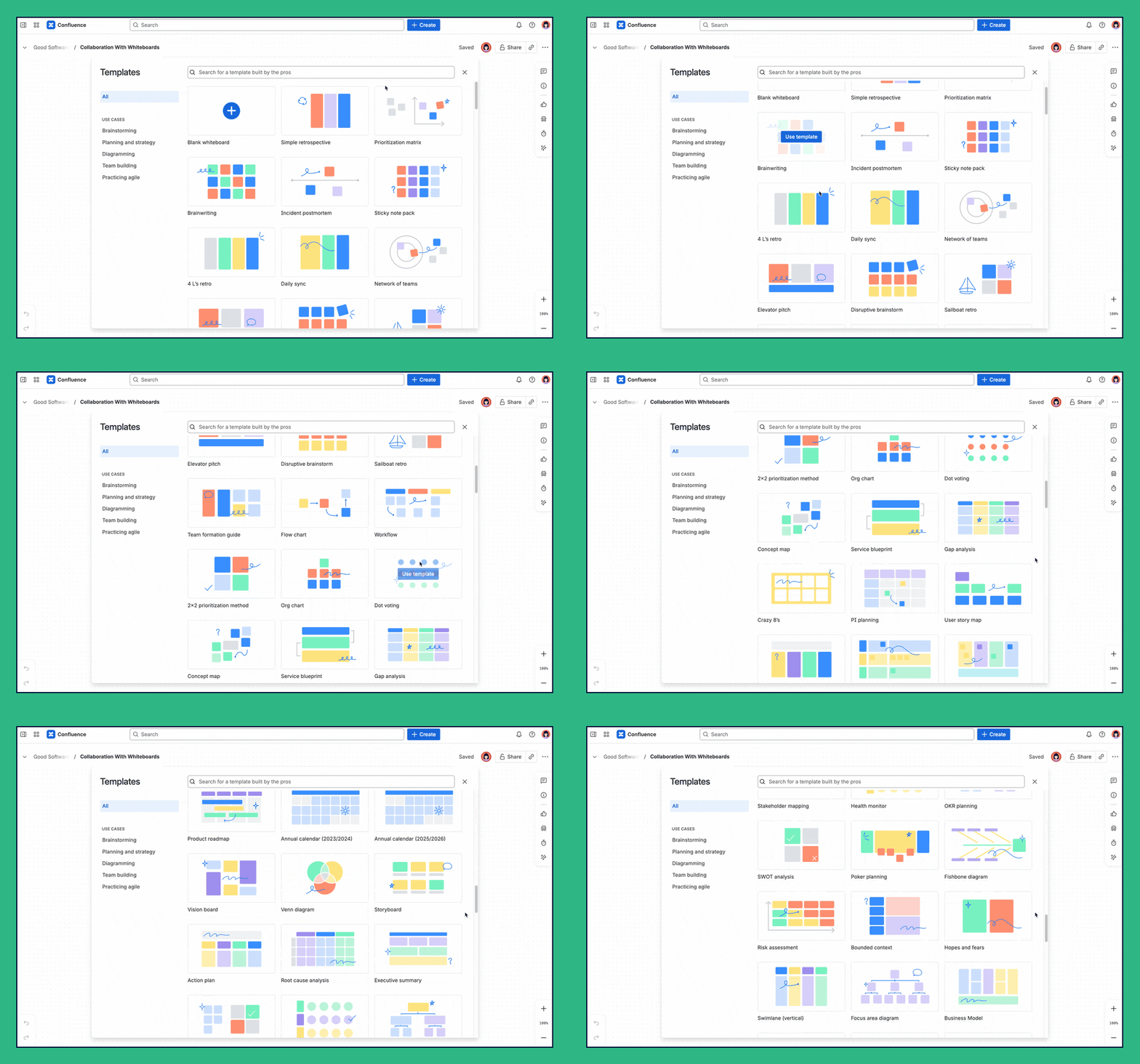
But there isn’t always a perfect template for every use case. Every team is unique, of course. And if you already know exactly what you want to show and how you want to show it, it might be faster and more efficient to just start from scratch.
5 Best Practices for Collaboration
With or without a template, whiteboards give you excellent tools for working together with your team in a live session (for monologues, there’s Loom). Whether you’re running a kickoff, a workshop, or a retrospective, here are our top 5 best practices:
-
Smart Create:
The newest feature in Confluence whiteboards, Smart Create, gives your team a head start. Instead of staring at a blank canvas, you can choose Brainstorming or Diagram and let the AI generate an initial structure for you. It’s still in beta, but even now it helps you skip setup and get straight to collaboration. Want to see it in action? Watch our video. -
Smart Sections:
Smart Sections in Confluence whiteboards build on regular sections by letting you apply simple rules to any Jira work items you drop inside. Available on Confluence Premium and Enterprise, they sync changes back to Jira in real time and cut out manual updates. For example, if we move a card into a Smart Section, the Jira work item automatically gets the right metadata. The parent is set, labels are applied, and those labels trigger an automation in Jira that moves the work item into “Planned.” We’re using this setup ourselves while working on our Weekly Dose of Confluence in a whiteboard, and it saves us from a lot of manual updates. Want to see how it works in practice? Watch our video where we walk through using smart sections step by step.
-
Time-box your activities:
Use the built-in timer to set clear limits for brainstorming or voting rounds. The countdown keeps everyone focused, and the confetti at the end makes it easy to move on with energy still high. -
Use Private Mode for honest input:
Want real, unfiltered feedback? Turn on Private Mode. Everyone adds their thoughts at the same time, but the notes stay hidden until the round ends. This ensures quieter team members have just as much say as the louder voices. -
Prioritize with dot voting:
Once the board fills up with ideas, use dot voting to quickly spot what matters most. Give each participant a set number of votes and let the top ideas rise naturally. It turns a messy board into a clear set of next steps.
Want to dive deeper into whiteboards? We just published a new article where we take a look at the benefits of whiteboards over Miro and the best practices of whiteboards to collaborate effectively.

Ready for a Game?
Atlassian just dropped something unexpected into Confluence: “Race Mode,” a Formula 1-inspired mini-game built right into Whiteboards. You can try to beat the high score and share your time on social media to win awesome swag!

I’ll admit, I was a bit skeptical of Confluence whiteboards at first. Does anyone remember that the feature wasn’t actually part of Confluence when the beta was released?! 😁
But today, Confluence provides teams an incredible AI-powered ideation tool built for the way modern teams work. With the recent addition of Smart Create, AI sticky creation, and AI-powered idea grouping, teams can generate and organize new ideas in a flash. Not to mention how quickly you can select a group of stickies and convert them into work items in Jira. Idea to done has never been this fast, and I dig it.
I also think we’re at the beginning of the Confluence whiteboard diagramming era. With the addition of new shapes, AI power flowchart and mind map creation, and upcoming line drawing improvements, whiteboards are shaping up to be an impressive diagram creation tool for any team.

As a customer advocate, Matt Reiner is passionate about enabling Confluence users to share what they do best.
Benefit from Monthly Confluence Tips
Join our Monthly Dose of Confluence newsletter and discover smarter ways to work, publish, and collaborate in Confluence.


