
Let’s explore Content Manager, a criminally under-used Confluence content management tool and a little hack that lets you build your personal ultimate command center page.


Be THE Content Manager
"How do I change the status of 50 pages at once? Can I convert multiple pages into live docs in one go? I want to see all pages with the label 'approved' that were updated by user Joe Doe between August and December 2025."
These are all paraphrases of real questions asked by users on Atlassian Community. And they all have one simple answer. Content manager, a Confluence tool that seems to be flying under the radar of many administrators despite being a Swiss-knife of Confluence content management.
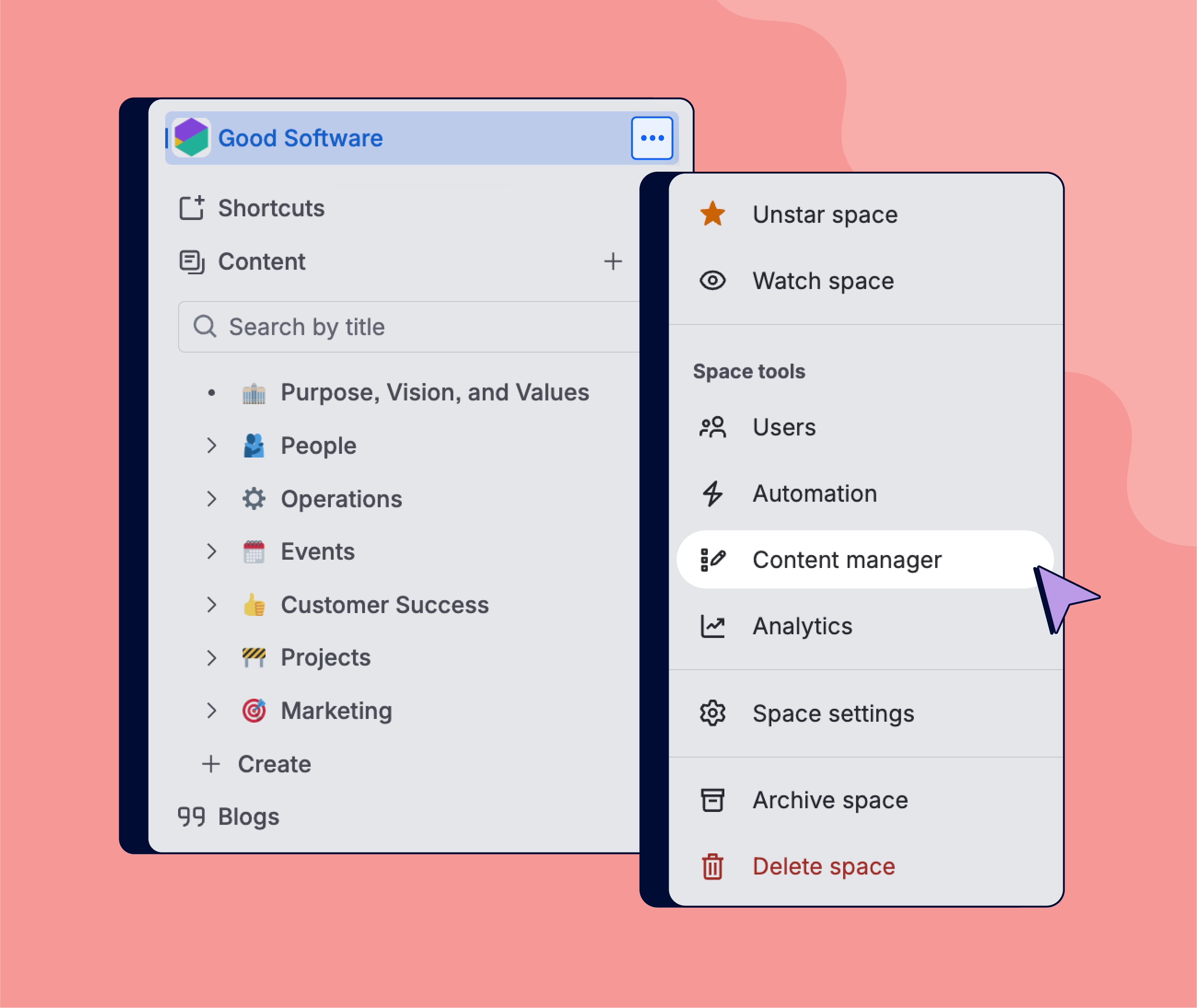
You can find Content manager in the space menu or under space settings.
Content manager gives admins a bird's eye view of the space’s content. You can see the key attributes of individual items, such as owner, contributors, dates (created, updated, last active), labels, statuses, content types, and views.
What’s more, you can quickly filter content by owners, statuses, labels, and dates.
Once you have your targets locked, you can take action – change the owner after a team member moves to a different team. Or you can change the status of several pages at once – perfect to trigger Marketplace apps or automation rules.
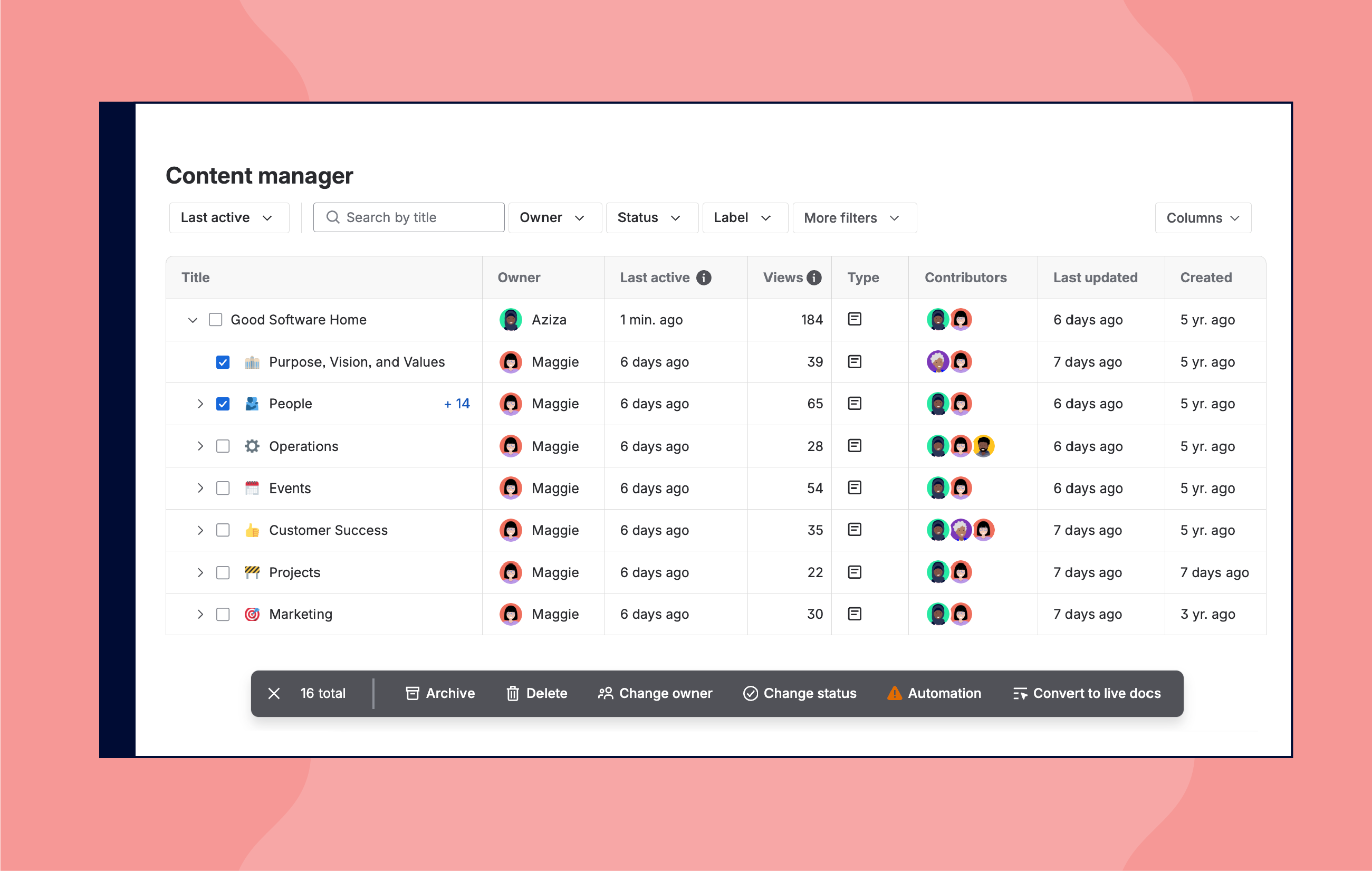
Actions are only available in Confluence Premium and Enterprise. Our five cents? It’s a shame because a wholesale Content manager version should be a standard (pun intended) feature in a content management system that Confluence undoubtedly is.
The Hack: Create Your Own Command Center
Content manager works great but its focus on a single space can be limiting. Imagine that you’re managing documentation in several Confluence spaces. You want to know the following details:
-
Which pages were updated yesterday so you can find and review them fast.
-
Which content items were updated recently in specific spaces.
-
Which pages haven’t been updated since forever and you need to perform your ‘check for outdated content’ routine.
Ideally, you want to see everything, from everywhere, at once. In other words, on a single page.
Let’s play cards
How? With the unassuming Cards macro. Often used to display a mundane carrousel of images, it’s also an incredibly powerful content tool.
-
Place the Cards macro onto a page.
-
Click the Content tab and select the Dynamic option.
-
Click Build dynamic cards and configure filters to display content that you want to monitor.
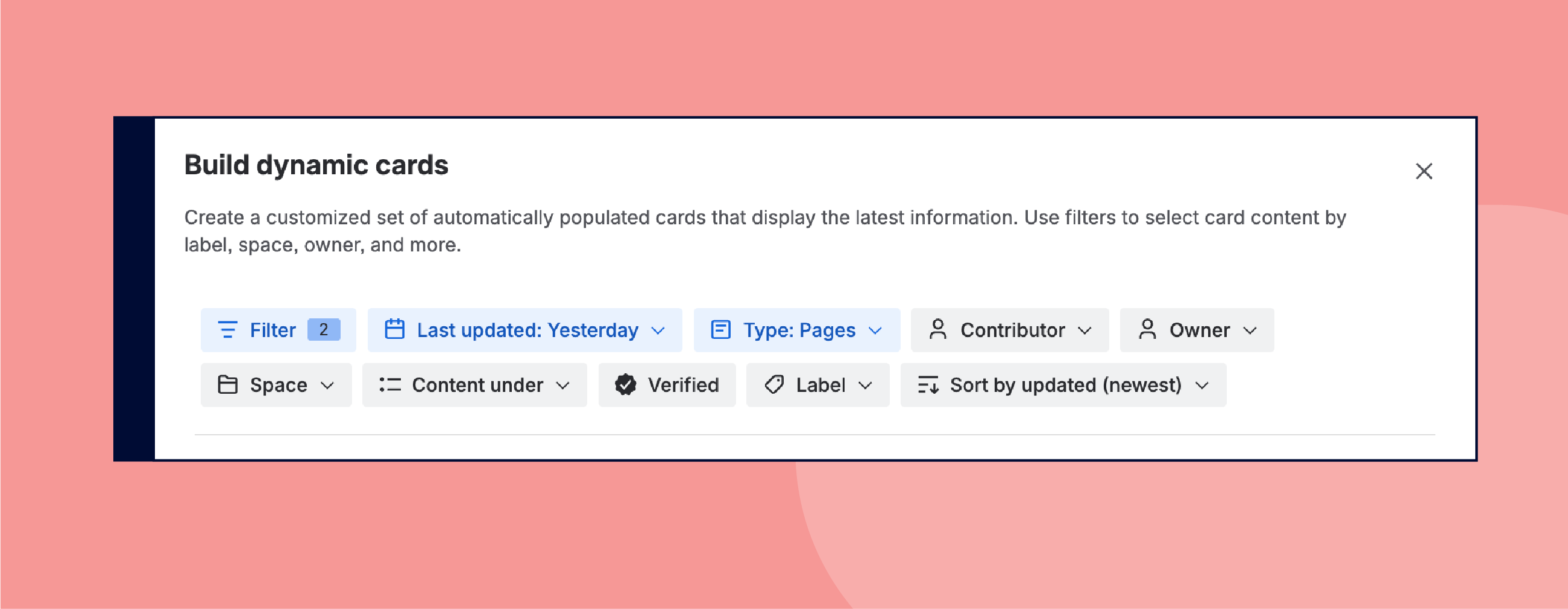
Using the same method, you can create several content-specific monitoring hotspots on a single page. Note, though, that the Cards macro is only available in Confluence Premium and Enterprise.
Recent updates on steroids
The Recent updates macro is well known and should be in the arsenal of any documentation manager. But you can further supercharge with a better, erm, interspace, context.
How? It’s easy:
-
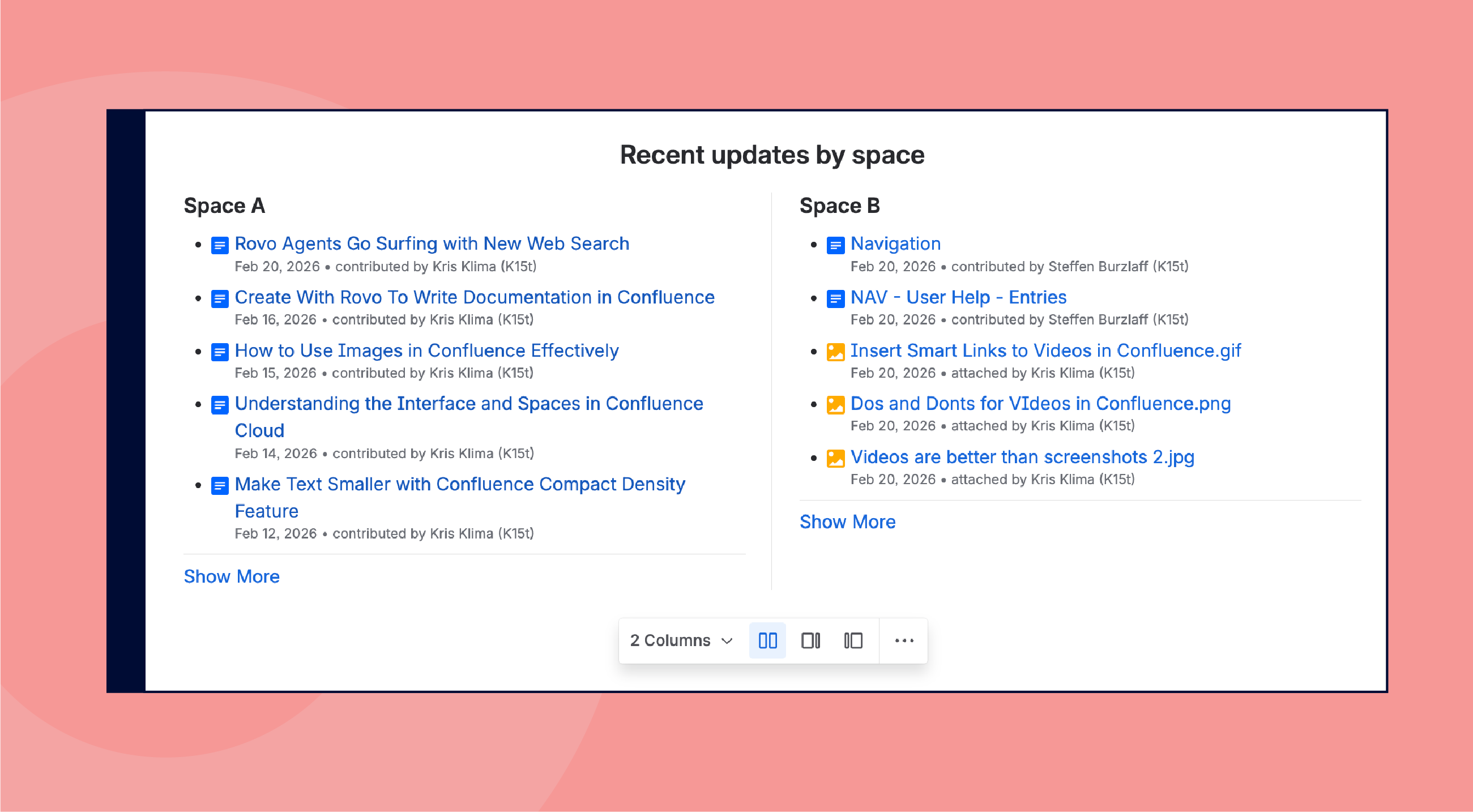
Use Layouts to create, for example, 2 columns.
-
Put the Recent updates macro in each.
-
Set up each macro to display recent changes from a specific space.
Pro tips:
-
Instead of just recent pages, you can also display the most recent attachments and find out who’s not adhering to the policy of using meaningful file names.
-
Filter pages by label to focus on specific content.
One Page To Rule Them All
A single page with various custom configurations of the Cards and Recent updates macros will give you an unprecedented overview of critical documentation workflow and life cycle parameters.
Open the page in the morning and… you have all the details right in front of you.
We can only encourage you to experiment with various setup and filtering options to create a page that works best for your routine and goals. For example, you can use the Content manager URL in the iframe macro on your bird's eye view page.
Sure, some of the features are only available on higher Confluence tiers. They’re not specified on the pricing page but should definitely be a part of any upgrade decision-making process.

Atlassian Rewrites Content Reuse Across Confluence and Jira
Atlassian is rolling out a new macro that will revolutionize how you reuse content across Confluence and Jira. The macro is called Synced blocks and it levels up content reuse and synchronization way beyond the existing excerpt/insert excerpt macros.
We’ve already tested Synced blocks so click the link below to learn more.
Benefit from Monthly Confluence Tips

Join our Monthly Dose of Confluence newsletter and discover smarter ways to work, publish, and collaborate in Confluence.


