
In this issue, we explore the brand-new “Create with Rovo” feature and show you how it can transform the way you work.


We’ve been waiting a long time for this: the “Create with Rovo” button has finally appeared on our Confluence site. Here’s a first look at how this Labs feature works today, and how you can get the most out of it.
Now in Your Create Menu
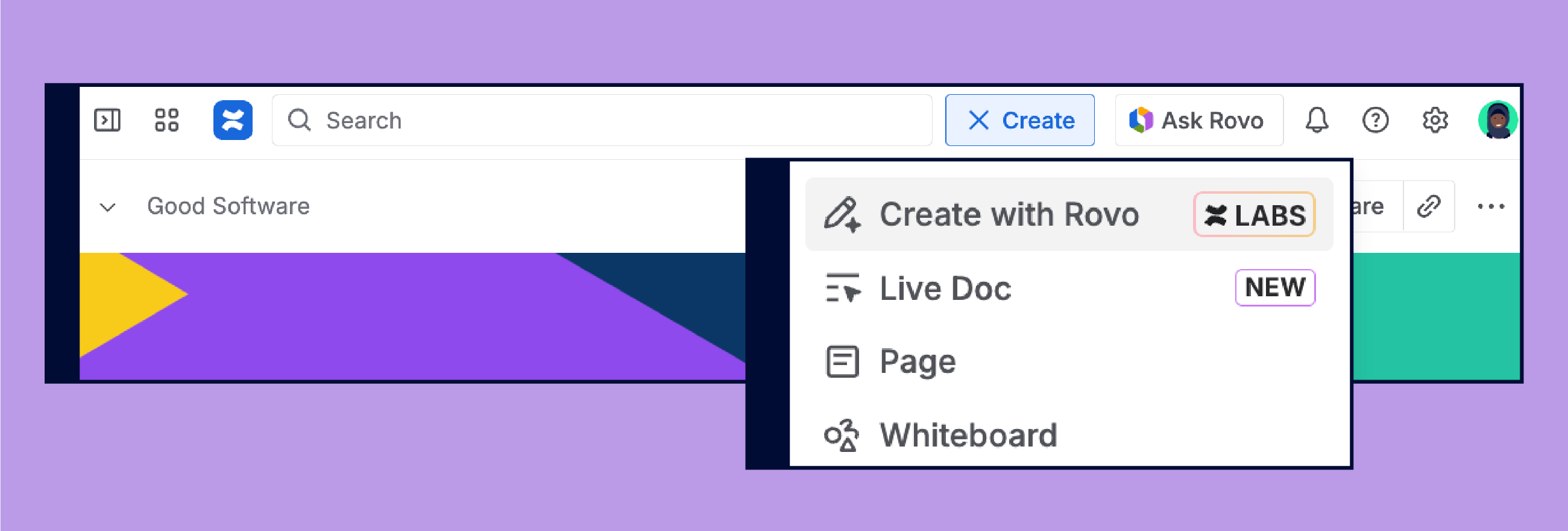
The new “Create with Rovo” feature is an AI-powered shortcut now available directly in the dropdown menu of the main “Create” button in Confluence Cloud. You will see the option “Create with Rovo” as one of the options alongside creating a page, whiteboard, or other content types.
How Does it Work?
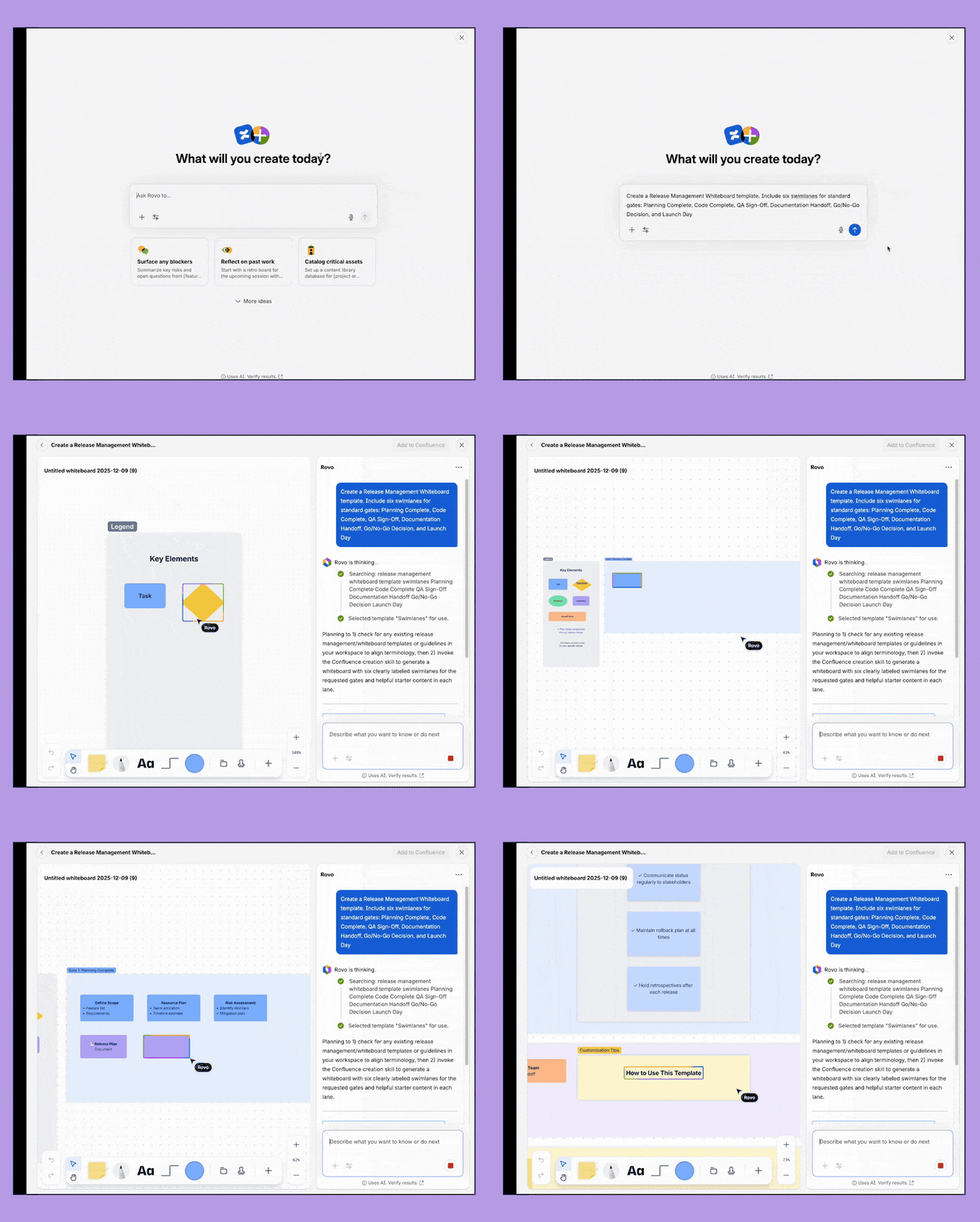
After selecting “Create with Rovo,” you’ll see a prompt box. Here, you can type or speak your idea, upload files, add links to Confluence pages or live docs, or even include a web search for extra context.
We tried the following prompt: “Create a Release Management Whiteboard template. Include six swimlanes for standard gates: Planning Complete, Code Complete, QA Sign-Off, Documentation Handoff, Go/No-Go Decision, and Launch Day”.
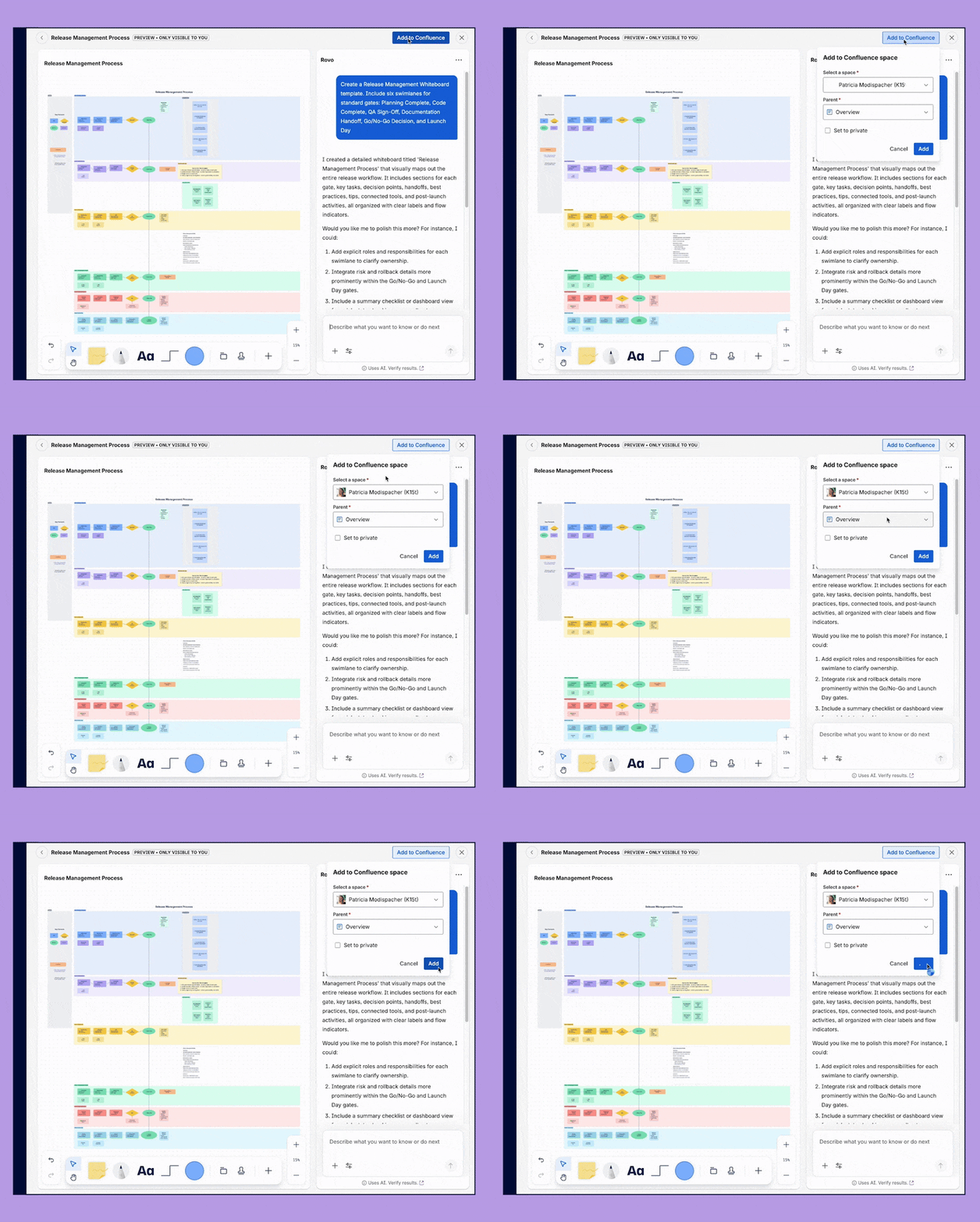
Rovo generated a draft whiteboard in a private preview mode, ready for editing and publishing.
As you can see, this is a draft only and your private preview mode. You can edit this canvas directly and hit “publish” when you’re happy with the result.
How to Get the Most Out of “Create with Rovo”
-
Use clear prompts: The more specific your request, the better the results. Mention what you want (e.g., “whiteboard with sections for goals and priorities”) and any must-have details.
-
Use references: If you want Rovo to pull in information from existing Confluence pages, paste the actual links or page titles to keep your content accurate.
-
Refine: Don’t settle for the first draft! Use the Rovo Chat panel to ask for clarifications, request more detail, or reformat the content before publishing. Review, fact-check, and tweak the content to fit your needs and style.
-
Experiment with formats: Not sure if you want a whiteboard, page, or something else? Let Rovo suggest the best format for your idea, you can always adjust later.
Be Aware of AI Hallucination
While “Create with Rovo” is a powerful tool, it’s important to remember that, like all large language models, it can sometimes “hallucinate”, that is, generate content that sounds plausible but isn’t based on real data.
We tried prompting Rovo with a project name that doesn’t exist in our instance (“Apex”). Although there was a minor note in a panel within the Rovo chat dialogue stating that no such page exists, the rest of the generated content (including numbers and details) was presented as if it were real, even though it was entirely made up.
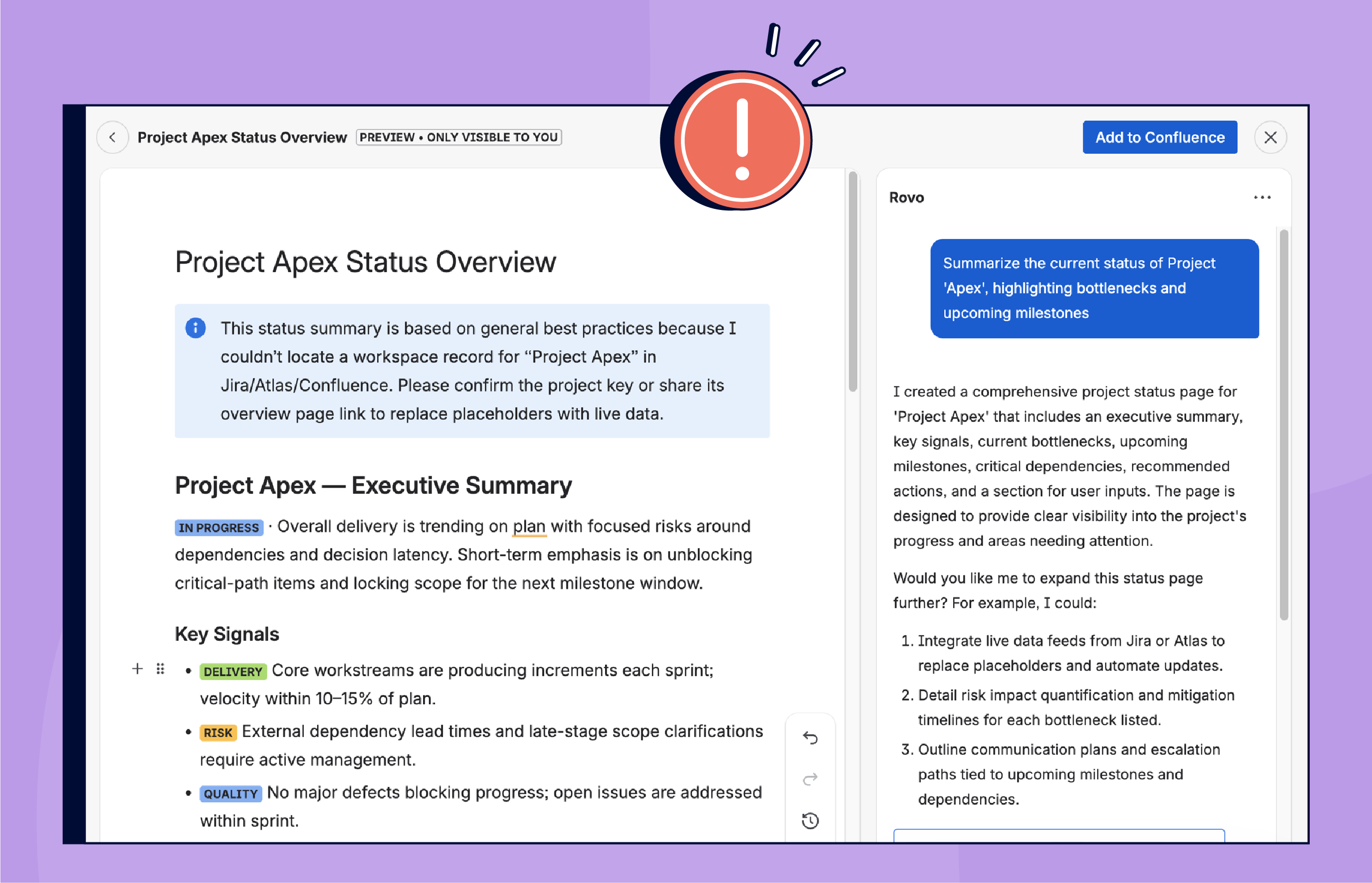
So, always double check facts, numbers, and references. If something looks off, use the chat panel to clarify or simply edit the draft.
Ready To Try It?
Click “Create” and select “Create with Rovo” to see how fast you can go from idea to outcome. Just remember to double-check any facts or numbers. Rovo is a great assistant, but you’re still the editor-in-chief!

New Automation Triggers for Team Changes
Confluence now supports automation triggers for team changes, making onboarding and offboarding easier. You can automate welcome messages, permissions, tasks, and more with just a few clicks.
Benefit from Monthly Confluence Tips

Join our Monthly Dose of Confluence newsletter and discover smarter ways to work, publish, and collaborate in Confluence.


